Gmail doesn’t have a “Save as PDF” button — it never has. But saving a Gmail email as a PDF is straightforward once you know where the option hides. There are four different ways to do it depending on whether you’re on desktop or mobile, and whether you need one email or many.
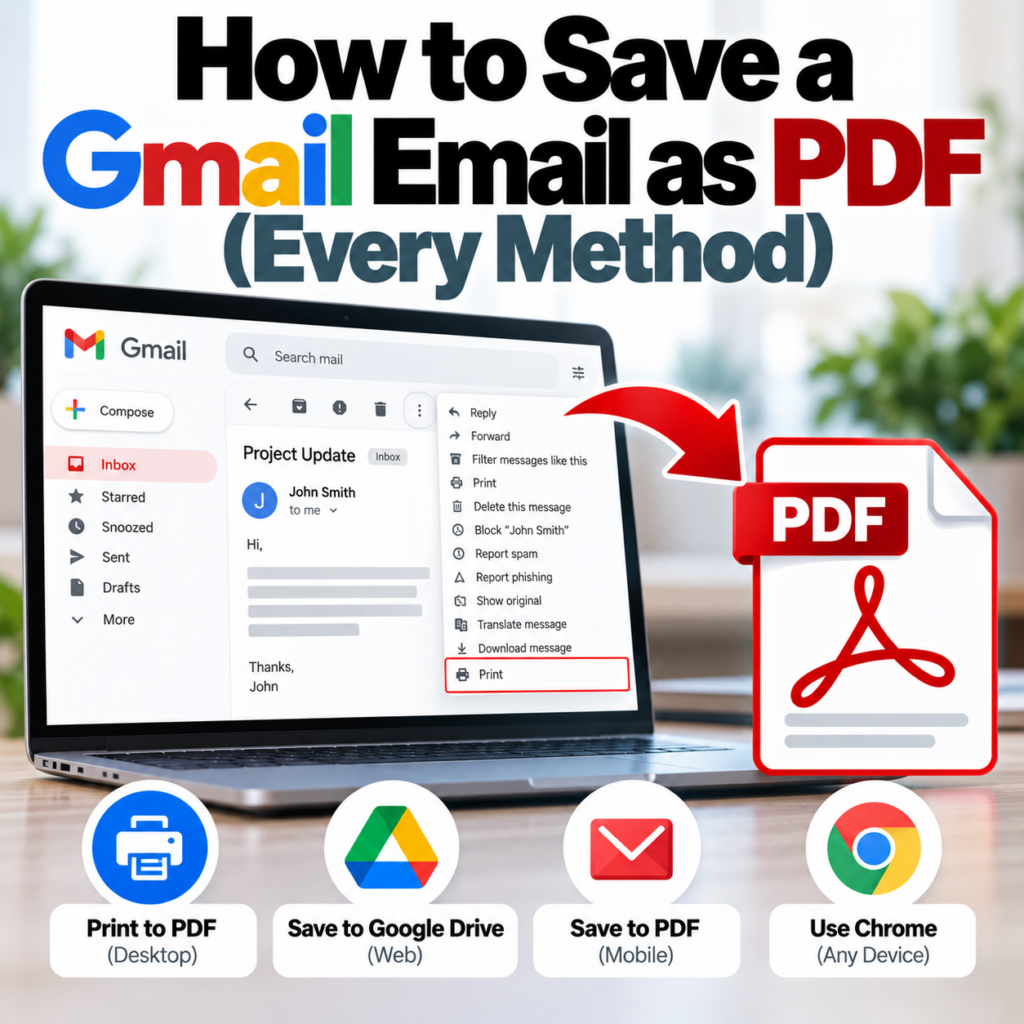
Method 1: Print to PDF in Gmail (Desktop)
This is the built-in approach and the fastest for single emails.
- Open the email in Gmail
- Click the three-dot menu (⋯) in the top-right of the email
- Select Print
- In the print dialog that opens, change the destination to Save as PDF (Chrome) or your system PDF printer
- Click Save, name the file, choose a location
In Chrome, “Save as PDF” appears as a destination option in the print dialog by default. In Firefox or Safari, look for “PDF” in the print panel options — it’s there but in a different location depending on your OS and browser version.
What you get: A clean PDF of the email as rendered in Gmail. Headers (From, To, Date, Subject) are included. The output looks like a printed email. BCC is not shown in Gmail’s print view — this is a Gmail design choice, not a technical limitation.
What you lose: BCC recipients, some formatting on complex HTML emails, and attachment files (though attachment names are usually listed). For sharing or basic archiving, this works well.
Method 2: Download as EML, Then Convert to PDF
If you need a more complete PDF — particularly if you need the raw email metadata rather than just the rendered view — Gmail lets you download the original email file:
- Open the email in Gmail
- Click the three-dot menu (⋯)
- Select Download message
- Gmail saves the email as a .eml file
- Upload the .eml file to the EML to PDF converter
- Download the resulting PDF
EML is Gmail’s native export format — it’s an open standard that preserves the complete email structure including all headers. The PDF produced from an EML file is more complete than a print-to-PDF because it’s generated from the raw email data rather than the rendered browser view.
Note on EML vs MSG: Gmail exports .eml files, not .msg files. EML is a different format from MSG — if you’re also dealing with Outlook MSG files, those need separate handling. The MSG vs. EML guide covers the differences.
Method 3: Save as PDF on iPhone or Android
The Gmail mobile app handles this slightly differently than desktop.
On iPhone (iOS Gmail app):
- Open the email
- Tap the three-dot menu (⋯) in the top right
- Tap Print
- In the iOS print preview, pinch outward on the preview image — this converts it to a PDF in the Share sheet
- Tap the Share icon and choose Save to Files
The pinch gesture is the non-obvious part. Once you’ve done it, it becomes second nature.
On Android:
- Open the email
- Tap the three-dot menu
- Tap Print
- In the print dialog, tap the dropdown at the top and select Save as PDF
- Tap the PDF icon to save
Method 4: Google Takeout for Bulk Export
If you need to export many Gmail emails as PDF — an entire label, a date range, or your whole inbox — Google Takeout is the starting point, though it requires extra steps to get to PDF.
- Go to takeout.google.com
- Deselect all, then select only Mail
- Choose which labels to include (or export all mail)
- Download your export — Gmail exports as MBOX format
- Use a tool like Thunderbird or an online MBOX splitter to extract individual EML files from the MBOX archive
- Batch convert the EML files to PDF
This is a multi-step process, but it’s the only way to export large volumes of Gmail messages to PDF without a third-party service. For bulk EML-to-PDF conversion after the MBOX split, the bulk converter handles multiple files in one upload (free account required).
Which Method Should You Use?
- One email, reading or sharing: Print to PDF in Gmail. Fastest, no extra tools.
- Need complete headers including BCC: Download as EML → convert to PDF.
- On mobile: Use the Print option in the Gmail app with the PDF save step.
- Many emails at once: Google Takeout → split MBOX → batch convert EML files.
- For legal or compliance purposes: Download as EML and convert — the raw email file preserves metadata that the print view drops. The eDiscovery guide covers what completeness requires.
What About Gmail Emails That Someone Forwarded as MSG Files?
This happens occasionally — someone using Outlook forwarded a Gmail email to you as an MSG attachment. In that case, you have an MSG file, not an EML. Use the MSG to PDF converter for those. The format the file was saved in — not where the original email came from — determines which converter you need.
See the FAQ for more common questions, and pricing for account options if you’re converting in bulk.
Have a Gmail EML file that needs to become a PDF? Upload it and get a complete, formatted PDF back in seconds.Convert Email to PDF Now →