Converting a single email to PDF is straightforward. Converting an entire thread — all the back-and-forth replies in context — is less obvious. Different email clients handle threads differently, and the approach that gives you a clean, complete PDF of the whole conversation depends on which client you’re working in.
Here’s how to do it in Outlook, Gmail, and with saved email files.
What “Thread” Actually Means for Conversion
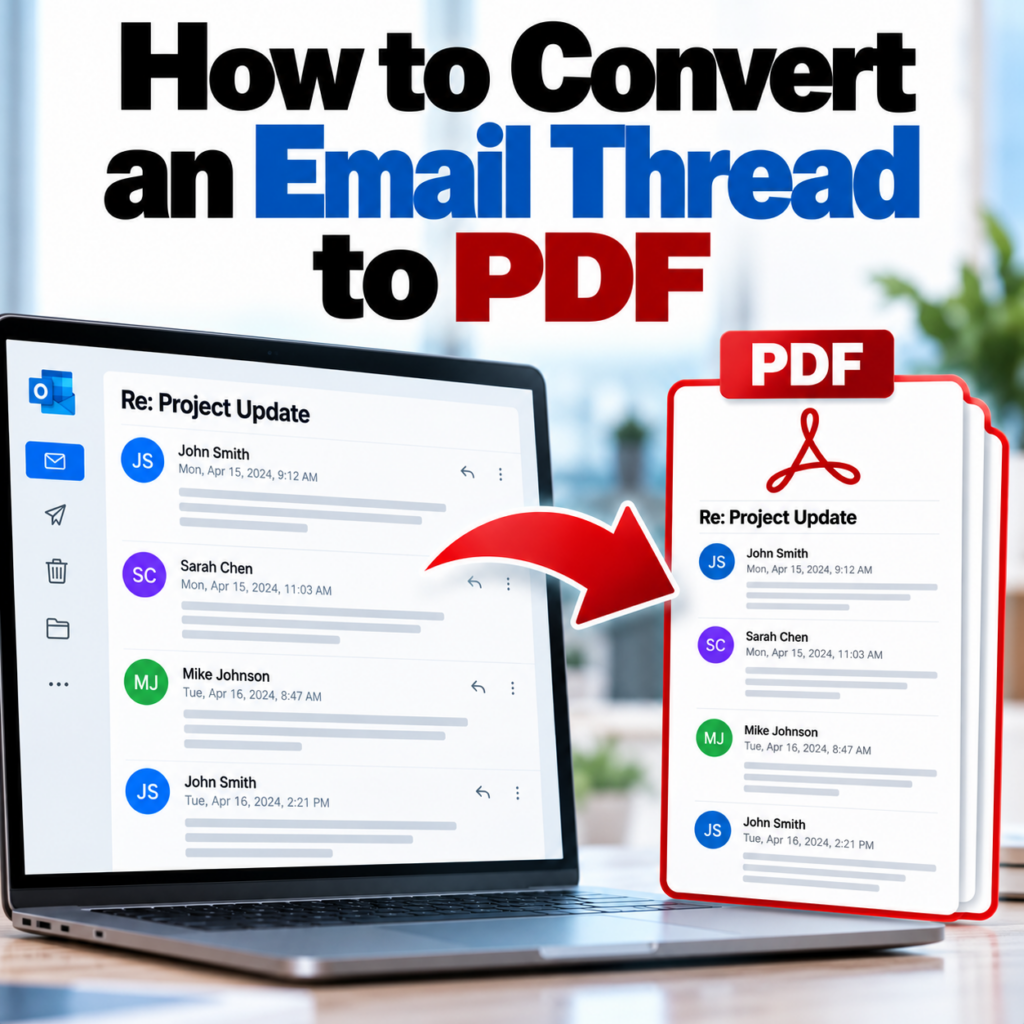
Most email clients show conversations as threaded views — all messages under the same subject line grouped together. But under the hood, each reply is a separate email message. When you convert to PDF, you have two options:
- Convert the final reply, which contains the full thread quoted in the body — one PDF that shows the entire conversation from bottom to top
- Convert each message separately — multiple PDFs, one per email, in order
For most purposes, the first approach (convert the last reply) is what you want. It’s one document, it shows the full thread, and it’s easy to read and share. The second approach is useful when you need individual timestamps on each message, or when the replies weren’t sent as quoted-reply chains (i.e., each email in the thread is a fresh message, not a reply-all with quoted history).
Converting an Email Thread in Outlook
Method A: Print the final email in the thread
If your thread uses standard reply chains (each reply quotes the previous messages), opening the final message in Outlook gives you the full conversation in the body. Print it to PDF:
- Open the most recent reply in the thread
- Press Ctrl+P (Windows) or Cmd+P (Mac)
- Select Save as PDF as your destination
- Save
The resulting PDF shows the most recent message at the top, with the full quoted thread below — exactly how it looks in Outlook. This is the fastest approach for most threads.
Method B: Save as MSG, then convert
If you need the complete header metadata (including BCC) on the thread-level email, save the final reply as an MSG file and convert it with the Outlook MSG to PDF converter. The MSG file contains the full message body including quoted thread history, and the conversion preserves complete metadata that Outlook’s print-to-PDF often drops.
Method C: Convert each message separately
When individual messages in a thread weren’t sent as quoted replies — or when you need separate PDFs with individual headers for each message — select all emails in the thread, drag them to a folder as MSG files, and batch convert them. The bulk converter handles multiple files at once. You’ll get one PDF per message, numbered or named for sequencing.
Converting an Email Thread in Gmail
Method A: Print the conversation
Gmail’s print function prints the entire conversation as a single document — not just the last message.
- Open the conversation in Gmail
- Click the three-dot menu (⋯) at the top right of the conversation
- Select Print all
- In the print dialog, select Save as PDF
- Save
“Print all” is the key — it prints every message in the thread, not just the one currently expanded. The resulting PDF is paginated and includes each message’s headers. This is Gmail’s cleanest thread-to-PDF path.
Method B: Download as EML and convert
Gmail’s “Download message” option (three-dot menu on an individual email) downloads that specific message as an EML file, including whatever thread history is quoted in the body. For the full thread, download the last message. Then convert via the EML to PDF converter for a metadata-complete output.
When You Have MSG Files From a Thread
If you’ve received MSG files as part of a legal production, compliance request, or client handoff, each file typically represents one message in a thread. Two scenarios:
Scenario 1: Each MSG contains the full quoted thread. Common when Outlook users export emails — the last reply contains all previous replies in the body. Convert just the final MSG file; the resulting PDF includes the full conversation.
Scenario 2: Each MSG is a standalone message with no quoted history. Each email was exported without quoted replies, or each message was a fresh send rather than a reply. In this case, convert all MSG files and read them in chronological order. The bulk converter produces consistent output across the set.
For legal review: If this is a thread you’re processing for litigation or compliance, individual PDFs per message with separate timestamps are often preferable to a single combined PDF — they can be Bates-stamped individually and cited by date. The eDiscovery guide covers production formatting requirements in more detail.
Merging Multiple Email PDFs Into One Document
If you’ve converted each message separately and want to combine them into one thread PDF, any PDF editor or merger handles this. Free tools like PDF24, Smallpdf, or Adobe Acrobat let you drag PDFs into order and merge them. Sequence them chronologically — oldest first — so the thread reads naturally from top to bottom.
Thread Conversations That Span Multiple Formats
In mixed-platform environments, a thread might start on Outlook (MSG) and have replies from Gmail users (EML), or vice versa. If you have the files in different formats, convert MSG files with the MSG converter and EML files with the EML converter, then combine the PDFs. The output format is the same regardless of the source file type.
For background on why MSG and EML require separate handling, see the MSG vs. EML comparison.
Quick Reference
- Outlook thread, quick PDF: Open last reply → Print to PDF
- Outlook thread, complete metadata: Save last reply as MSG → convert to PDF
- Gmail thread: Three-dot menu → Print all → Save as PDF
- Multiple MSG files from a thread: Bulk convert, sequence by date
- Need one combined document: Convert individually, then merge PDFs
See the FAQ for common questions about file handling, and pricing for batch conversion options.
Have an email thread saved as MSG files? Convert them to clean, readable PDFs — individually or in batch.Convert Email Thread to PDF →