You double-clicked the MSG file. Nothing happened. Or macOS asked you which app to use and you had no idea what to pick. Either way, you’re stuck with a file you can’t read.
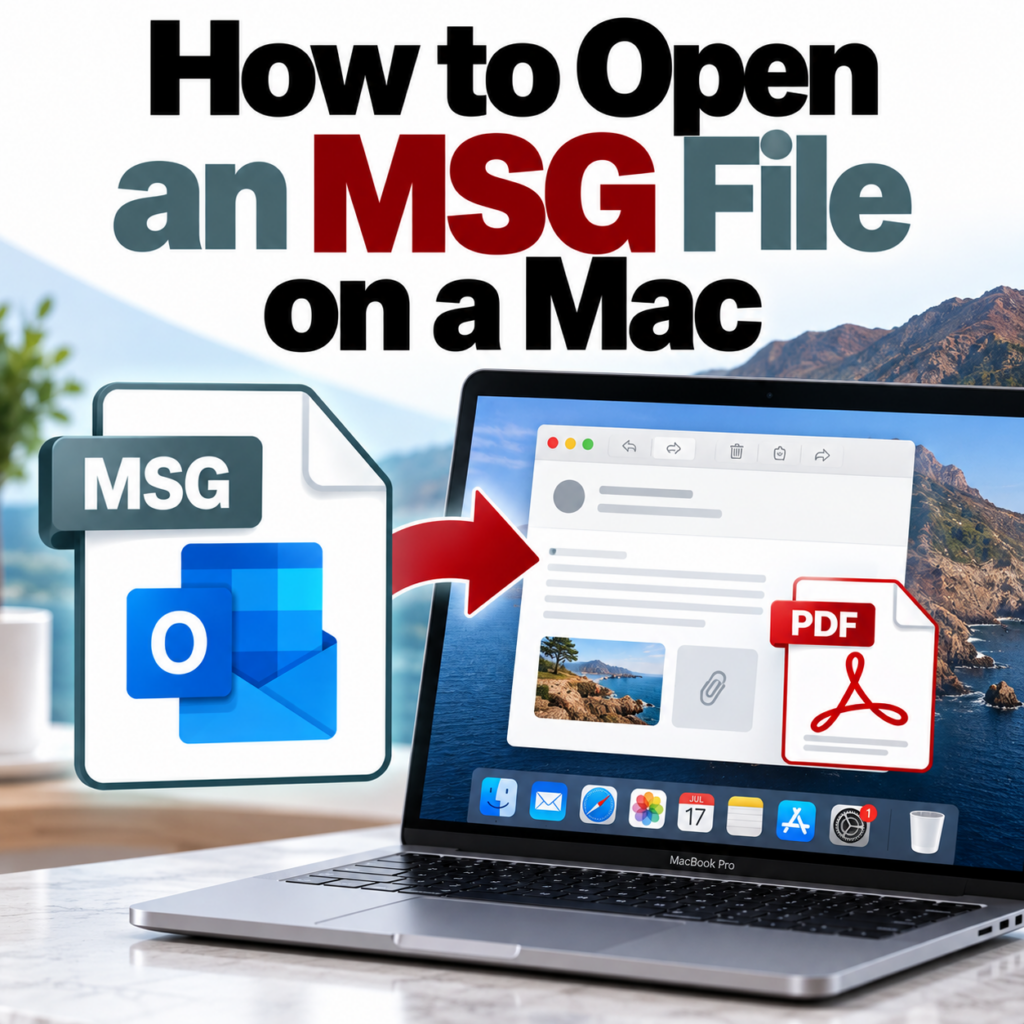
MSG is Microsoft Outlook’s proprietary email format. macOS has no native support for it — no built-in viewer, no default app association, nothing. Here’s what actually works.
Why MSG Files Won’t Open on Mac by Default
MSG files use Microsoft’s Compound Document File Format — a binary structure built for Outlook. Apple has never built support for it into macOS, and there’s no system-level handler for .msg files the way there is for .pdf or .docx. When you double-click one, the OS has nowhere to send it.
This isn’t a settings issue you can fix in Finder preferences. You need either a tool that understands the format or a way to convert the file into something macOS can open natively.
Option 1: Convert It to PDF in Your Browser (Fastest)
If your goal is to read the email — see who sent it, what it says, what was attached — converting to PDF is the fastest path. You don’t install anything, it works on any Mac running any version of macOS, and the result opens instantly in Preview.
- Go to msgtopdfconverter.com
- Upload your MSG file
- Download the PDF
- Open it in Preview or any PDF viewer
The PDF includes the complete email: From, To, CC, BCC, Date, Subject, body, and attachment references. No account needed for up to 3 files. The full process is on the conversion guide.
Option 2: Outlook for Mac
If you have a Microsoft 365 subscription, Outlook for Mac is included. Install it, and MSG files will open directly by double-clicking — no conversion needed, full fidelity to the original email.
This is the right answer if you need to reply to the email or interact with it as a live message, not just read it. It’s not worth getting a Microsoft 365 subscription just to open MSG files, but if you’re already a subscriber and haven’t installed Outlook on your Mac, that’s the cleanest fix.
One caveat: some very old MSG files or files exported from non-standard Outlook configurations can render with formatting issues in Outlook for Mac. Rare, but worth knowing.
Option 3: Paid MSG Viewer Apps (Mac App Store)
A few apps in the Mac App Store are purpose-built MSG viewers. They open MSG files without Outlook and display the email content in a readable interface.
Quality varies. The better ones handle formatted emails, inline images, and attachment lists correctly. The weaker ones struggle with HTML-heavy emails or unusual encoding. If you regularly receive MSG files and don’t want to convert each one, a good viewer app is worth the small cost. Search “MSG viewer” in the Mac App Store and check reviews before buying.
Avoid random downloads from the web. Some sites offer free “MSG opener” downloads that bundle adware or request unnecessary system permissions. Stick to the Mac App Store or use the browser-based converter — there’s nothing to install and no permissions required.
Option 4: LibreOffice (Free, But Fiddly)
LibreOffice, combined with a community-developed MSG import plugin, can open MSG files on Mac. It works — but setup is genuinely annoying: you need to find the right plugin version that matches your LibreOffice version, install it correctly, and accept that formatting will come out wrong on anything beyond simple text emails.
Not recommended unless you already use LibreOffice heavily and have a specific reason to avoid other approaches.
What If You Have a Lot of MSG Files?
If you’re dealing with a folder of MSG files — from a litigation export, an inbox migration, or a client handoff — converting one at a time is impractical. The bulk MSG to PDF converter handles multi-file uploads in one session. You’ll need a free account for batch mode.
What If the File Is .EML, Not .MSG?
EML is a different format used by Gmail, Apple Mail, and Thunderbird. macOS handles EML better than MSG — Apple Mail can open EML files natively. If you’re not sure which format you have, check the file extension. If it’s .eml, try opening it directly in Apple Mail first. If it’s .msg, use one of the options above. The MSG vs. EML guide explains the format differences.
Quick Decision Guide
- Just need to read it: Browser converter → PDF → Preview. Done.
- Need to reply or interact with it: Outlook for Mac (requires Microsoft 365).
- Receive MSG files regularly: A Mac App Store viewer app or Outlook for Mac.
- Have many files at once: Batch convert with the bulk converter.
- File is .eml not .msg: Try Apple Mail first; or use the EML to PDF converter.
More answers on the FAQ page.
Have an MSG file on your Mac that won’t open? Convert it to PDF in your browser — no installation, works on any macOS version.Open My MSG File →