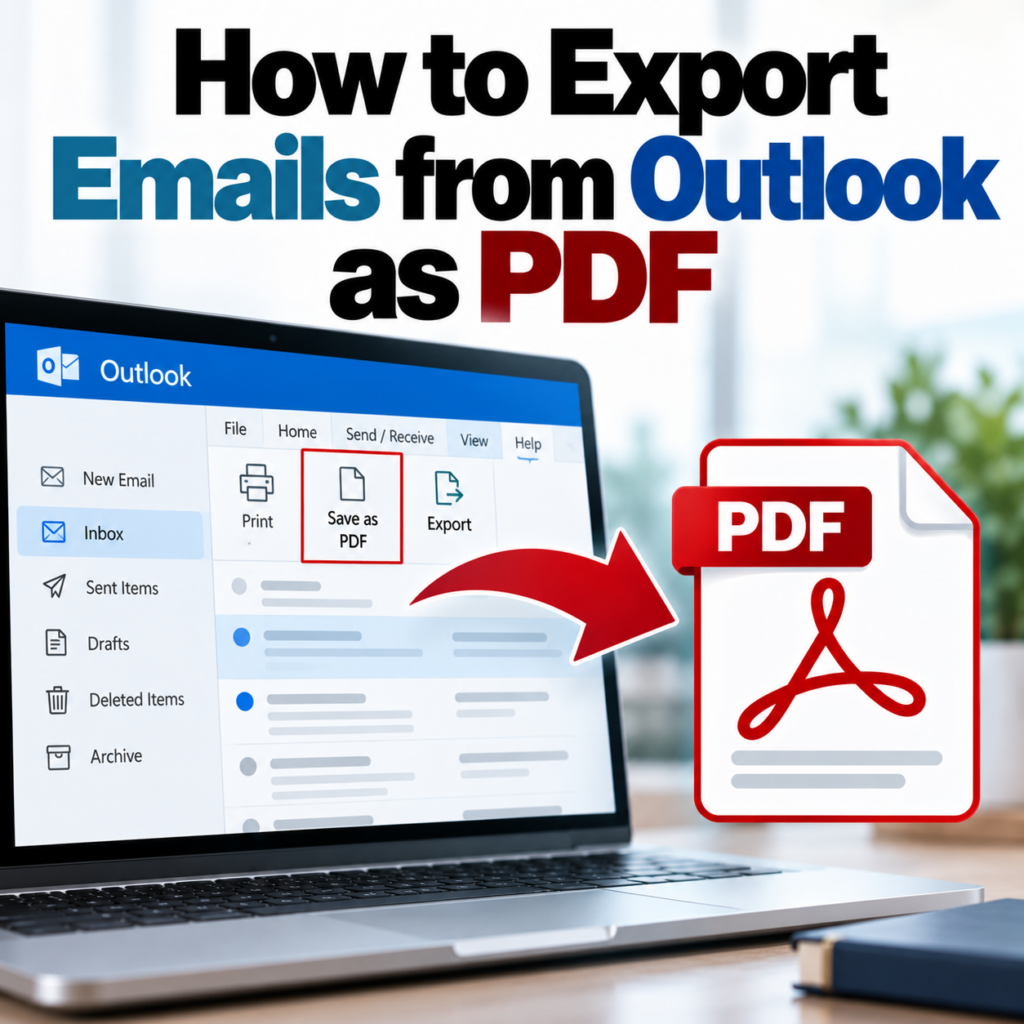
Outlook doesn’t have a dedicated “export to PDF” button for entire folders — which is annoying when that’s exactly what you need. Whether you’re exporting a handful of emails for a client, archiving a project inbox, or preparing records for a legal hold, the path from Outlook emails to PDF documents involves a few different approaches depending on your volume and use case.
Here’s what works, what doesn’t, and when to use each method.
Method 1: Print to PDF (Single Emails)
For one or two emails, this is the fastest path:
- Open the email in Outlook
- Press Ctrl+P (Windows) or Cmd+P (Mac)
- Select Microsoft Print to PDF (Windows) or Save as PDF (Mac) as your printer
- Click Print, name the file, choose a location, save
The output looks like a printed email — headers at the top, body below. It’s readable and shareable, but not always complete. The main gap: Outlook’s print preview frequently drops the BCC field. If you need BCC recipients in the PDF, this method will let you down.
Method 2: Save as MSG, Then Convert to PDF (Most Complete)
This is the approach that gives you the most accurate, metadata-complete PDF output — and it scales to batches.
Step 1: Save emails as MSG files
In Outlook for Windows, drag emails from your inbox or folder directly to your desktop or a folder in File Explorer. Each email saves as an individual .msg file. You can drag multiple emails at once to save them as a batch.
Alternatively: right-click an email → Save As → choose a location. The default format is MSG.
Step 2: Convert MSG files to PDF
Upload the saved MSG files to msgtopdfconverter.com. For multiple files, use the bulk converter — it processes them all in one upload and produces one PDF per email. A free account is required for batch uploads.
The output PDFs include the full header block — including BCC — plus body content, inline images, and attachment references. This is the method to use when completeness matters.
Method 3: File → Save As → PDF (Outlook 2016+, Windows)
In recent versions of Outlook for Windows:
- Open the email
- Go to File → Save As
- In the “Save as type” dropdown, select PDF
- Name the file and save
This is slightly more reliable than print-to-PDF for header completeness, but it still goes through Outlook’s rendering pipeline rather than reading the raw MSG properties — so BCC can still be inconsistent. If you don’t see PDF in the Save As dropdown, your Outlook version doesn’t support it; use print-to-PDF or the MSG conversion approach instead.
Method 4: Exporting an Entire Folder
Outlook has no native “export folder as PDFs” feature. Your options for folder-level exports:
Option A: Select all, drag to folder, batch convert. In Outlook, click the first email in a folder, then Shift+Click the last to select all. Drag the selection to a folder on your desktop. Each email saves as a separate MSG file. Then batch convert the entire folder using the bulk converter.
Option B: Export to PST, extract MSG files, then convert. If you need emails from a retired or archived mailbox, File → Open & Export → Import/Export → Export to a File → Outlook Data File (.pst) creates a PST archive. PST extraction tools can then pull individual MSG files from the archive, which you convert to PDF. More steps, but the right approach for large historical mailboxes.
Selecting all emails in a folder on Mac: Outlook for Mac handles the drag-to-folder save differently than Windows. Use Cmd+A to select all in a folder, then right-click → Save As. You may need to save them one at a time depending on your Outlook for Mac version — this is a known limitation of the Mac client.
What Gets Preserved in the PDF
The completeness of the output depends heavily on which method you use:
- Print to PDF: Body text and basic headers. BCC often missing. Attachment filenames listed at bottom.
- File → Save As → PDF: Similar to print-to-PDF. Slightly better header handling in some Outlook versions.
- MSG → purpose-built converter: Full headers including BCC, formatted body, inline images, attachment references. Most complete option.
For personal archiving where you just need to remember what an email said, any method works. For client deliverables, legal records, or compliance purposes, use the MSG conversion route — the difference in metadata completeness is significant. The legal eDiscovery guide covers what “complete” means in a compliance context.
Outlook on the Web (OWA)
If you’re accessing Outlook through a browser at outlook.com or via Microsoft 365 web:
- Open the email
- Click the three-dot menu (⋯)
- Select Print
- In your browser’s print dialog, choose Save as PDF
Output quality depends on your browser’s PDF rendering. Chrome and Edge handle this well. BCC visibility in OWA print is inconsistent — it depends on your organization’s Outlook settings.
Naming Your Exported PDFs
Before you export a large batch, set a naming convention. Outlook saves MSG files using the email’s subject line as the filename — which is usually readable but often messy (special characters, long subject lines, duplicate subjects in a thread). Clean up the names before converting so the PDFs are organized on the other end.
A consistent pattern like YYYY-MM-DD_Sender_Subject.pdf sorts chronologically in any file system and makes finding specific emails in a large archive much faster.
Frequently Asked Questions
Can I export an entire Outlook mailbox as PDFs at once? Not natively. The batch MSG approach handles it best — select all, save as MSG, batch convert. For very large mailboxes, this is still a multi-step process.
Do exported PDFs retain the original timestamp? Yes — when you use a purpose-built MSG converter, the timestamp in the PDF reflects the original send time, not the export date. Print-to-PDF also preserves the original date since it appears in the rendered email view.
What about Outlook on Mac — can I export MSG files the same way? The drag-to-desktop method works on Mac, but the behavior is less consistent than on Windows. If you’re having trouble, saving emails individually via right-click → Save As is more reliable.
More answers on the FAQ page. See pricing for batch conversion account options.
Ready to export your Outlook emails as complete, accurate PDFs? Upload the MSG files and get results in seconds.Convert Outlook Emails to PDF →