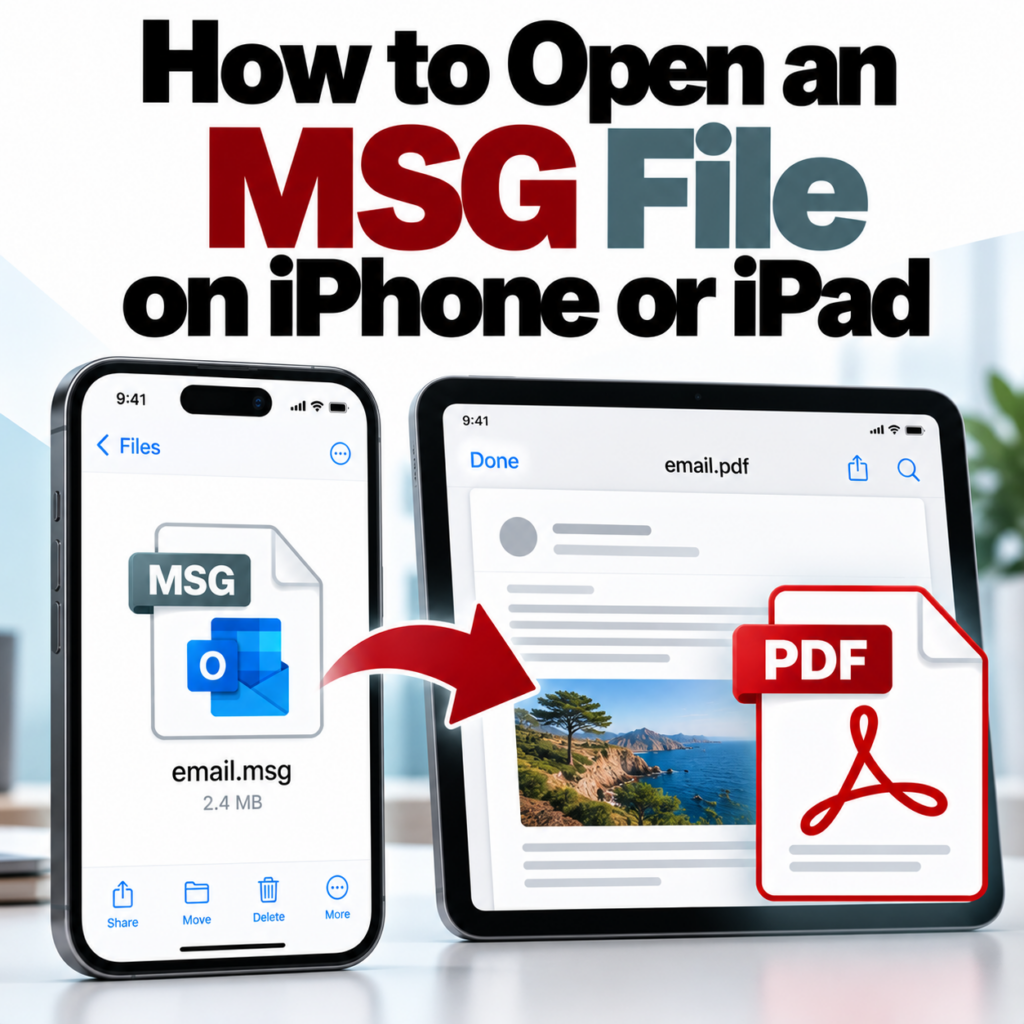
Someone sent you an MSG file. You tapped it on your iPhone or iPad and nothing useful happened — maybe it downloaded, maybe it threw an error, maybe iOS just stared back at you blankly. You’re not alone. iOS has no native support for MSG files, and even the Outlook mobile app doesn’t let you open MSG files as attachments the way desktop Outlook does.
Here’s what actually works on iOS.
Why iOS Can’t Open MSG Files
MSG is Microsoft Outlook’s proprietary email format — a binary file structure that Apple has never built support for. iOS handles a wide range of file types natively (PDF, DOCX, XLSX, images, audio) but MSG is not one of them. There’s no registered handler for .msg files in iOS, so tapping one either does nothing or prompts a “no apps can open this file” message.
Even the Microsoft Outlook app for iPhone, which you’d reasonably expect to handle MSG files, doesn’t support opening MSG attachments on mobile. The mobile app is built around live mailbox access — it’s not a file viewer for offline MSG files.
The Fix: Convert to PDF in Safari
The fastest solution that works entirely on your iPhone or iPad:
- Open Safari on your device
- Go to msgtopdfconverter.com
- Tap the upload area and select your MSG file from Files or your Downloads folder
- Wait for the conversion — usually a few seconds
- Download the PDF
- Open it in Files, Books, or any PDF app
The resulting PDF contains the complete email — From, To, CC, BCC, Date, Subject, body, and attachment references. No app installation, no account needed for up to 3 files. It works on any iPhone or iPad running a current version of iOS or iPadOS.
Where the MSG File Might Be on Your Device
Before you can upload, you need to locate the file. Common places MSG files end up on iOS:
- Mail app attachment: If someone emailed you the MSG file, tap and hold the attachment in Mail, then choose “Save to Files.” It’ll appear in your iCloud Drive or On My iPhone folder.
- Downloaded from a link: Safari downloads go to the Downloads folder, accessible through the Files app under Browse → Downloads.
- Shared via AirDrop: AirDrop files land in the Files app, typically in On My iPhone → Downloads.
- Shared via iMessage or WhatsApp: Tap and hold the file in the message thread, choose Share → Save to Files.
Once the file is in the Files app, the upload step at msgtopdfconverter.com lets you browse directly to it.
Batch Conversion on Mobile
If you have multiple MSG files to convert, you can upload them in batch rather than one at a time — but you’ll need a free account to access multi-file upload mode. Create a free account, then upload all your files in one session. See pricing for what’s included at each tier.
For large batches, converting on a desktop or laptop is more practical than doing it on a phone — the bulk converter guide covers that workflow.
App Store Alternatives
A search for “MSG viewer” in the App Store returns a few options. Most of these are basic file viewers with limited format support — they may render simple text emails correctly but struggle with HTML-formatted emails, inline images, or complex encoding. Read reviews carefully before paying for one.
For most people, the browser-based conversion approach is faster, more reliable, and free for the first few files.
EML files are different. If your file ends in .eml rather than .msg, iOS actually handles it better — the Mail app can often open .eml files directly. Try tapping it in the Files app first. If that doesn’t work, the EML to PDF converter handles those too.
What to Do If the Upload Doesn’t Work
Occasional hiccups on mobile uploads:
- File won’t appear in the picker: Make sure you saved it to the Files app first. Files shared in other apps (Mail, Messages) need to be explicitly saved to Files before they’re selectable in a browser upload dialog.
- Upload seems to stall: Check your connection. Large MSG files with attachments can take a moment on a slow connection. Try on WiFi rather than cellular.
- File over 10MB: The converter handles files up to 10MB. Most individual emails are well under this, but MSG files with large embedded attachments can exceed it.
Common questions are answered on the FAQ page.
MSG file on your iPhone that won’t open? Convert it to PDF right in Safari — takes under a minute.Open My MSG File →