Can’t Open an MSG File? Here’s How to Actually Fix It
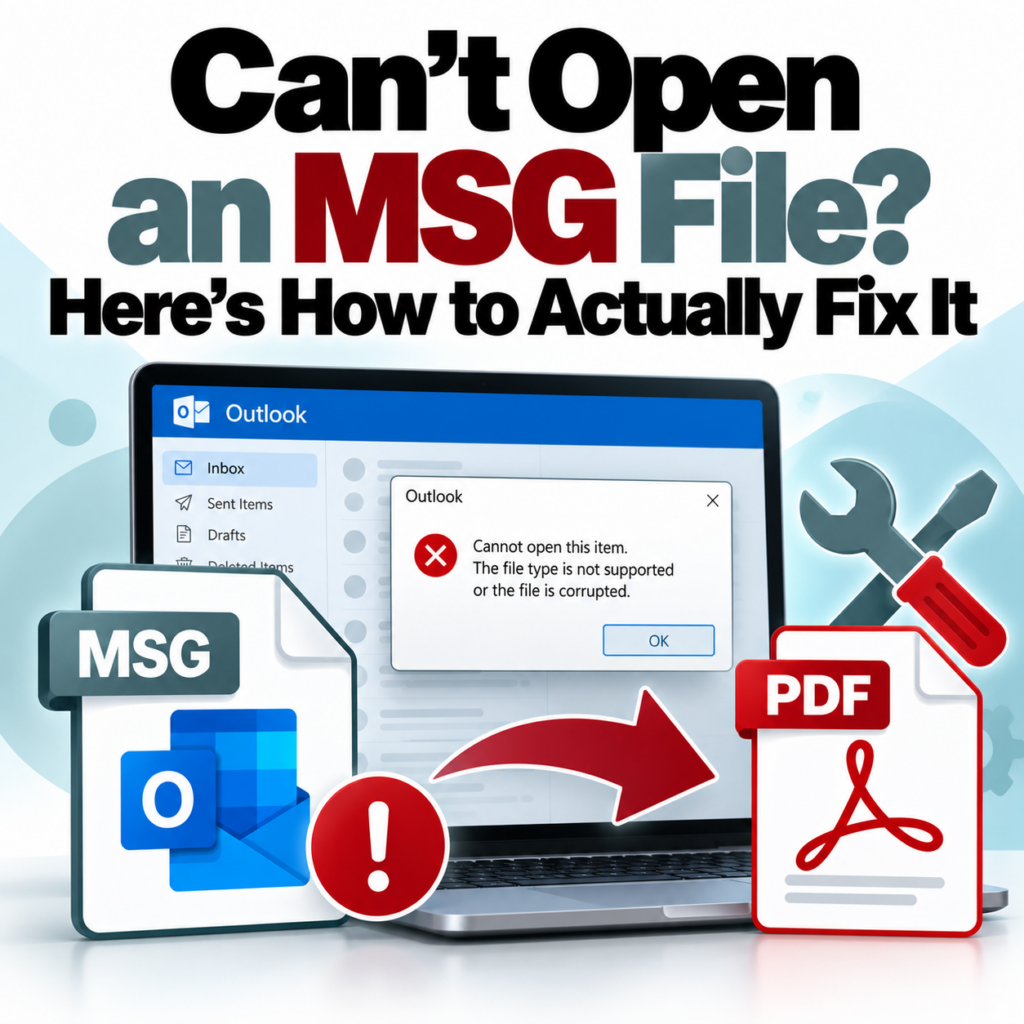
You’ve got an MSG file. You try to open it. Nothing happens, or you get an error about no associated program, or your browser downloads it instead of opening it. This is one of the more frustrating file-format problems because MSG files look like they should just open — they have an icon, they’re small, they came from email — but there’s no universal way to open them without the right software.
Here’s what’s happening and how to fix it, organized by platform.
Why MSG Files Don’t Open by Default
MSG is Microsoft Outlook’s proprietary format. It’s a binary file using Microsoft’s Compound Document File Format — not a standard format like PDF, JPEG, or DOCX. Windows doesn’t have a built-in viewer for MSG files. macOS doesn’t. Linux doesn’t. Your browser doesn’t know what to do with them.
The only application that opens MSG files natively without additional setup is Microsoft Outlook. If you don’t have Outlook, the OS has no idea what program to hand the file to, so nothing opens.
The full explanation of what’s inside an MSG file — and why the format is structured this way — is in the What Is an MSG File guide. But for now, let’s focus on solutions.
The Fastest Fix: Convert It to PDF in Your Browser
If your goal is to read the email content, converting to PDF is the simplest solution that works on any platform without installing anything:
- Go to msgtopdfconverter.com
- Upload your MSG file
- Download the PDF
The PDF includes the full email: From, To, CC, BCC, Date, Subject, body, and attachment references. You can open it in any PDF viewer, share it, print it, or archive it — all things you can’t do with an MSG file without Outlook.
No account required for up to 3 conversions. Create a free account to convert more. The step-by-step process is on the how-to conversion guide.
If You’re on Windows and Don’t Have Outlook
Windows
Windows will prompt you to choose a program when you double-click an MSG file if no association is set. Your options:
Option A: Convert to PDF (recommended). Use the browser-based converter above. Fastest, no installation required, works on any Windows version.
Option B: Install a free MSG viewer. Several lightweight desktop applications can open MSG files without full Outlook. Search for “free MSG viewer” — there are a few reliable options. Quality varies, and most won’t handle complex emails (heavy formatting, unusual attachments) as well as purpose-built tools. Good for a quick read; less good for anything you need to share or archive.
Option C: Install Outlook. If you have a Microsoft 365 subscription, you likely have access to Outlook. Install it and MSG files will open directly. Not worth getting a subscription just for MSG files, but if you’re already a subscriber, use it.
Option D: LibreOffice + plugin. LibreOffice has community-developed MSG import plugins. This is genuinely fiddly to set up, formatting often comes out wrong, and it’s not worth the effort unless you have specific reasons to stay in the LibreOffice ecosystem.
If You’re on a Mac
macOS
MSG files have no native support on macOS. Double-clicking will either do nothing or prompt you to choose an application — and there’s no standard Mac application that handles MSG.
Option A: Convert to PDF (recommended). Same browser-based approach — works identically on Mac. Upload, download, done.
Option B: Outlook for Mac. If you’re running Microsoft 365 on your Mac, you have Outlook for Mac available. It opens MSG files, though behavior can be slightly different from Windows Outlook — some older MSG files with unusual formatting don’t render perfectly.
Option C: Paid Mac MSG viewer apps. The Mac App Store has a few apps marketed as MSG viewers. Price and quality vary. They work for basic email content but may struggle with complex formatting or attachments.
Be careful with random MSG viewer downloads on Mac. Some apps marketed as file viewers contain bundled adware or request unnecessary permissions. Stick to apps from the Mac App Store or use the browser-based converter instead.
If You’re on Linux
Linux
Linux has no native MSG support. Options:
Option A: Convert to PDF via browser. Works in any browser, no installation needed.
Option B: libmsg / msgconvert command-line tools. Several open-source libraries can parse MSG files on Linux. If you’re comfortable with the command line, msgconvert (from the libemail-outlook-message-perl package on Debian/Ubuntu) converts MSG to EML, which you can then open in Thunderbird or convert to PDF. Technically capable but not a beginner-friendly workflow.
Option C: Thunderbird + MSG import plugin. Mozilla Thunderbird has community plugins for MSG import. Results are inconsistent with complex MSG files.
If You’re on a Mobile Device
iOS / Android
Mobile platforms don’t open MSG files. Period. Even the Microsoft Outlook mobile app doesn’t let you open an MSG file attachment the way you would on desktop.
The practical solution on mobile: open a browser, go to msgtopdfconverter.com, upload the MSG file from your device’s files, and download the PDF. The PDF opens natively in any iOS or Android PDF viewer.
What If the MSG File Won’t Convert?
Occasionally an MSG file fails to convert. Common reasons:
- File is corrupted: Binary MSG files can be partially corrupted by incomplete downloads, file system errors, or email client bugs. A corrupted MSG file may be partially unreadable. If you have the original email, re-export it.
- File exceeds 10MB: Check the file size. MSG files with large attachments can exceed the limit. The attachment is what’s driving the file size — the email body itself is almost certainly small.
- File isn’t actually an MSG file: Sometimes files with .msg extensions aren’t email files — they’re other file types renamed, or they’re corrupted beyond recognition. Open the file in a text editor and see if you can identify the content type.
- Encoding issue: Very old MSG files or files created by non-standard Outlook implementations can have encoding issues that affect parsing.
The FAQ page covers troubleshooting steps for conversion issues. If you’re consistently having problems with a specific file or file type, the FAQ is the first place to check.
What If You Have Many MSG Files?
If you’re dealing with more than a handful of files — a folder from a litigation export, an archive from an inbox migration, a set of saved client emails — batch conversion is significantly more efficient than uploading one at a time. The bulk MSG to PDF converter handles multiple uploads in a single session. A free account is required. See pricing for plan options.
What If the File Is EML, Not MSG?
EML files are a different format — they’re used by Gmail, Apple Mail, and Thunderbird. They have similar opening problems but require different handling. Check the file extension: if it’s .eml rather than .msg, use the EML to PDF converter instead. The MSG vs. EML guide explains the differences.
Quick Reference: Which Solution for Which Situation
- Just need to read the email quickly: Browser converter → PDF. Done in 30 seconds.
- Need to reply to the email: You’ll need Outlook or to ask the sender to forward it normally (not as an attachment).
- On a Mac: Browser converter or Outlook for Mac.
- On Linux: Browser converter.
- On mobile: Browser converter.
- Have many files: Batch converter with a free account.
- Need it for legal purposes: Purpose-built converter to preserve full metadata. See the eDiscovery guide.
MSG file giving you trouble? Upload it and get a PDF back in seconds — no software to install, works on any device.Open My MSG File →