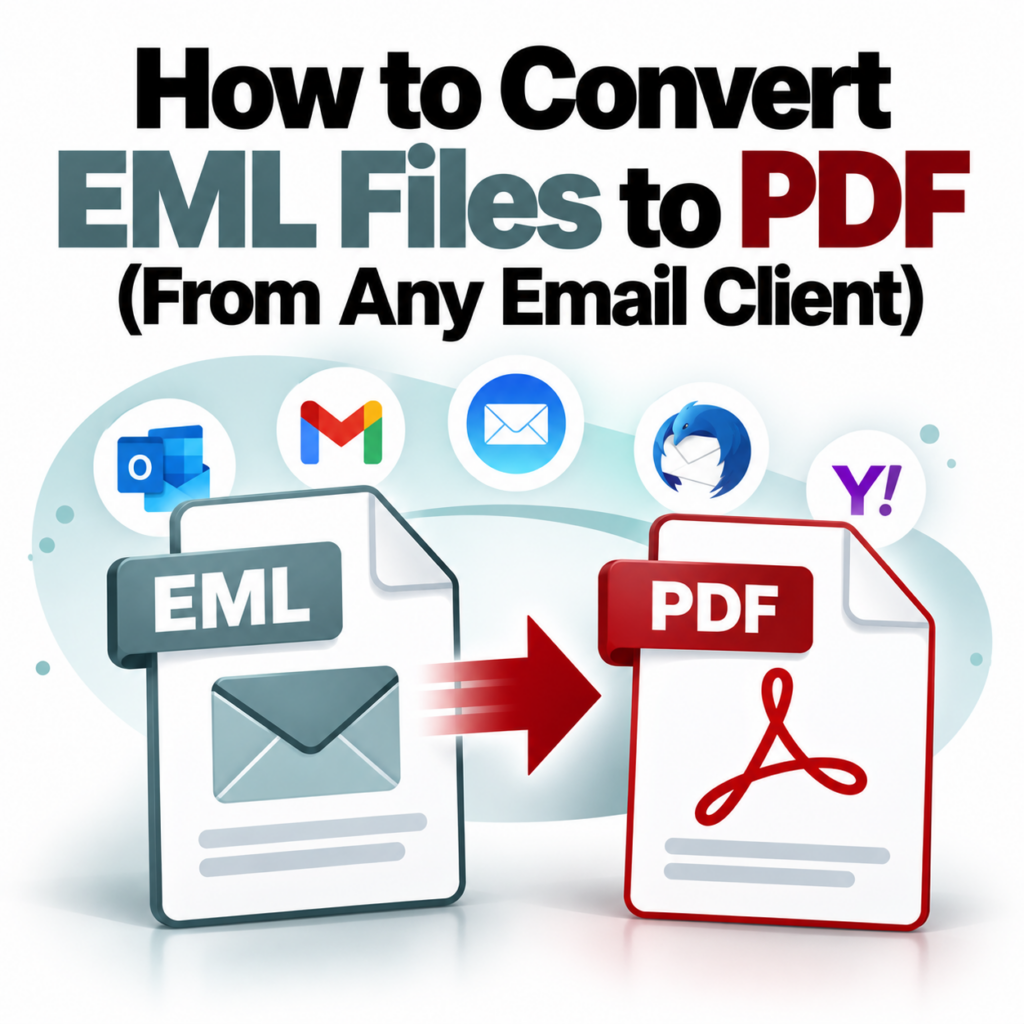
How to Convert EML Files to PDF (From Any Email Client)
EML files are the saved-email format used by Gmail, Apple Mail, Thunderbird, Windows Mail, and most non-Microsoft email clients. They’re portable and open-standard, but still not something most people can just double-click and read — especially if they’ve been shared across teams or received from an external party.
Converting to PDF solves the accessibility problem and creates an archivable, shareable document that anyone can open. Here’s how to do it.
What’s Actually Inside an EML File
EML is a plain-text format defined by RFC 5322. Unlike MSG files (which are binary), you can technically open an EML file in a text editor and see the raw structure — headers at the top, MIME-encoded body content below.
A typical EML file contains:
- Standard headers: From, To, CC, BCC, Date, Subject, Message-ID, Reply-To
- MIME headers specifying content encoding and format
- The email body, stored as plain text, HTML, or both
- Attachments, encoded in Base64 within the file
- Inline images referenced from the HTML body
The challenge for conversion is handling the MIME encoding correctly — particularly for HTML bodies (which need to be rendered, not displayed as raw HTML) and for Base64-encoded attachments. A converter that doesn’t handle MIME properly produces garbled output or silently drops content.
If you’re also dealing with MSG files alongside EML, the MSG vs. EML comparison explains the key differences in format and why they require separate handling.
Where EML Files Come From
You probably know what you’re dealing with, but the common sources:
- Gmail export (Google Takeout): When you export your Gmail data, individual emails come as EML files inside MBOX archives. Tools that split MBOX into individual emails produce EML files.
- Apple Mail saves: Dragging an email from Apple Mail to your desktop saves it as an EML file.
- Mozilla Thunderbird exports: Thunderbird can export individual messages or entire mailboxes, with individual messages coming as EML.
- Windows Mail / Outlook Express: Older Windows email clients use EML as their native format (unlike modern Outlook, which uses MSG).
- Legal productions from non-Microsoft custodians: When Gmail or Apple Mail users are custodians in a discovery process, email exports typically come as EML or MBOX.
- Email-as-attachment forwarding: Someone who dragged an email to attach it to another email in a non-Outlook client — the attached file will be EML.
How to Convert an EML File to PDF
The fastest approach is a browser-based converter. Here’s the process step by step:
1
Go to the EML to PDF converter. Visit msgtopdfconverter.com/eml-to-pdf/. No account required for individual file conversions.
2
Upload your EML file. Click the upload area or drag and drop your file. Maximum file size is 10MB. If your EML file is larger (possible with big attachments), you may need to extract the attachment before converting.
3
Wait for processing. The converter parses the MIME structure, renders the HTML body, and builds the PDF layout. For most files, this takes a few seconds.
4
Download your PDF. Click download. The file includes the complete header block, the rendered body, and attachment references.
What the Output PDF Includes
A properly converted EML-to-PDF should include:
- Full header block: From (display name and email address), To, CC, BCC, Date, Subject
- The rendered email body — HTML emails are rendered as they’d appear in an email client, not as raw markup
- Inline images embedded in the body
- A list of attachments with filenames and file types
- Reply thread content when included in the EML
The BCC field is particularly important to verify. Some converters drop it silently. If you’re converting for legal or compliance purposes and BCC recipients are relevant, confirm the field appears in your output PDF.
Options for Different Situations
Single file, quick result: Upload directly at the EML to PDF page — no account needed for up to 3 conversions.
Multiple files: Create a free account to access batch upload mode. You’ll process all files in one session instead of uploading individually.
Also have MSG files: Keep them separate. EML and MSG require different parsers. Use the Outlook MSG to PDF converter for the MSG files.
Legal production: The eDiscovery guide covers format requirements and when PDF production is appropriate versus native format production.
Alternative Methods (With Trade-offs)
Print to PDF from an email client: If you open an EML file in Thunderbird, Windows Mail, or Outlook, you can print it to a PDF using your system’s PDF printer. This produces a readable PDF but relies on the email client’s rendering, which varies. BCC fields are frequently dropped in print views. Attachments won’t be referenced.
Open in text editor, copy body, print: Technically possible for simple EML files. Won’t work for HTML body emails (you’ll get raw markup), and you’ll lose all header formatting.
General-purpose conversion tools: Tools like Zamzar or CloudConvert support EML conversion. Quality varies — these are general-purpose converters with EML as one of many supported formats. The same accuracy considerations that apply to MSG conversion apply here. See the full comparison.
EML Files With MBOX Archives
If you have a .mbox file (the container format from Gmail Takeout or Thunderbird full-mailbox exports), you’ll need to split it into individual EML files before converting. MBOX files contain multiple emails concatenated together — the converter expects individual EML files, not a whole MBOX archive.
Several free tools handle MBOX-to-EML splitting (Thunderbird does this natively through its import/export options). Once you have individual EML files, batch conversion through the bulk converter handles them efficiently.
Character Encoding and International Emails
EML files use MIME encoding for non-ASCII characters. Most modern converters handle this correctly for common character sets (UTF-8, ISO-8859-1). Edge cases show up with older emails using less common encodings, or with emails that mix encodings in the same file.
If you’re seeing garbled characters in your output PDF, the most common culprits are: the email was encoded in a non-UTF-8 character set, or the converter doesn’t handle the charset declaration in the MIME headers correctly. Purpose-built email converters handle this more reliably than general-purpose tools because they deal with these encoding variations specifically.
File Size Limits and Large EML Files
The 10MB limit applies per file. Individual emails are almost always under this — even emails with moderate attachments are typically 1–3MB as EML files. Emails with very large attachments (high-resolution images, large PDFs, video files) can exceed 10MB, but these are uncommon. If you hit the limit, consider whether the large attachment is actually relevant to what you need to preserve — the converter will still capture the email body and note the attachment filename.
Check the FAQ for more details on file handling, limits, and account options. See pricing for plan tiers.
Have EML files that need to become PDFs? Upload one now — no account, no setup, results in seconds.Convert EML to PDF Now →