Bates stamping is how lawyers and paralegals create unique, sequential identifiers for every page in a document production. When you produce emails as evidence — in discovery, for an arbitration, or as exhibits — Bates stamps give every page a permanent reference number that attorneys, witnesses, and judges can cite unambiguously: “Please turn to Exhibit SMITH000042.”
Email files need to be converted to PDF before Bates stamps can be applied. This guide covers the full workflow: from MSG or EML files through to a properly stamped, production-ready PDF set.
What Bates Stamps Are
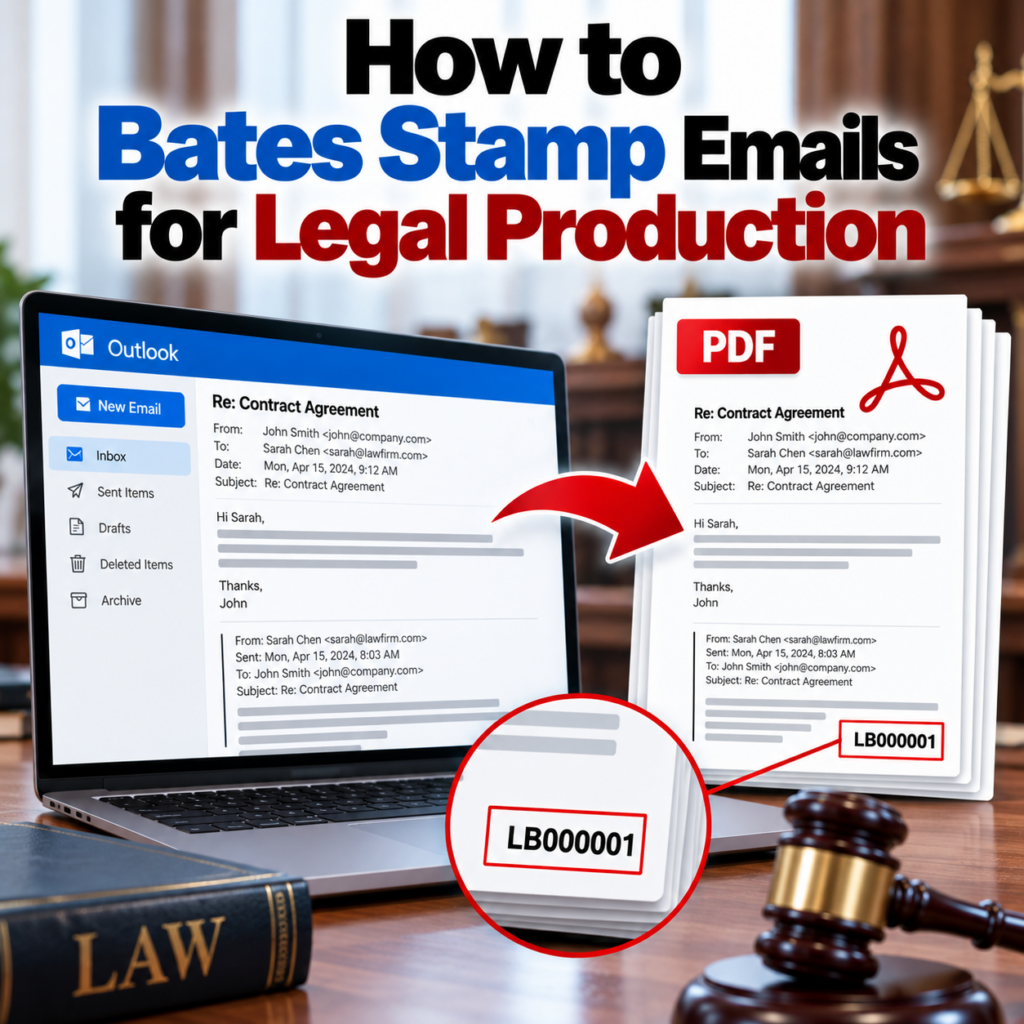
A Bates stamp is a unique alphanumeric identifier printed on each page of a document production. The format typically includes:
- A prefix — usually an abbreviation identifying the producing party (SMITH, ACME, DEF, PLF, or similar)
- A zero-padded sequential number — typically 6–8 digits to allow for large productions without running out of numbers
- Optionally, a suffix — used to distinguish between productions or volumes
A typical Bates number looks like: SMITH000001, SMITH000002, continuing through however many pages the production contains.
The stamp is placed consistently on every page — usually the bottom right or bottom center — and it’s printed directly on the PDF page, not added as a separate overlay or sticky note. Once Bates-stamped, the number becomes a permanent part of the document.
Why Emails Need Bates Stamps
In litigation, discovery requires parties to produce documents relevant to the case. When you’re producing hundreds or thousands of emails, the Bates stamp system lets everyone in the proceeding reference specific documents precisely. An attorney can write in a brief: “Defendant’s email of March 14, 2024 (SMITH000127–000128)” — and opposing counsel, the judge, and the jury can immediately locate the exact document and the exact pages being referenced.
Without Bates stamps, referencing specific emails in a large production becomes unwieldy and imprecise. Courts expect Bates-stamped productions in most formal discovery contexts. Failure to stamp can result in production objections or the need to re-produce documents.
Step 1: Convert Emails to PDF First
Bates stamps are applied to PDF pages. Before you can stamp email files, you need to convert them from their native formats (MSG, EML) to PDF.
This conversion step is important — the quality of the PDF determines the quality of the evidence. The conversion must preserve:
- Complete header metadata: From, To, CC, BCC, Date, Subject
- The complete message body
- Attachment references (the filenames of attached files)
Using Outlook’s print-to-PDF function or a generic file converter risks losing BCC and other metadata. Use a purpose-built email converter for accurate output. The MSG to PDF converter reads directly from the MSG file properties and preserves all available header data. For Gmail EML files, the EML to PDF converter handles MIME-encoded messages.
If you’re converting a full email thread, decide first whether to produce the thread as a single document (convert the final reply, which contains the full quoted chain) or as individual messages (one PDF per email, sequenced chronologically). For formal productions, individual PDFs per message are typically preferred because each can be stamped and cited independently. See the thread conversion guide for the mechanics of each approach.
Step 2: Organize Your PDFs Before Stamping
Before applying Bates stamps, get your PDFs into the order you want them numbered. Bates stamping is sequential and linear — whatever order you stamp in is the order the numbers will appear. Changing the sequence after stamping requires re-stamping the entire production, which creates version control problems.
Sorting email PDFs
Email productions are almost always organized chronologically — earliest messages first, latest last. If you’re producing individual PDFs per message, sort them by the email’s original send date. Naming files in a consistent format helps: YYYY-MM-DD_HH-MM_Subject.pdf sorts correctly in any file manager.
If you’re producing emails alongside other document types (contracts, invoices, memos), decide on your document ordering before stamping. Some attorneys prefer all emails grouped together; others prefer chronological ordering across all document types. Your Bates prefix and numbering plan should accommodate whichever approach you use.
Handling multi-page email PDFs
An email with a long body or detailed HTML formatting may convert to multiple PDF pages. Bates stamps run continuously across all pages of a single email — so a two-page email might be SMITH000012 and SMITH000013, and the next email starts at SMITH000014. The total page count of each email affects how you track your Bates range.
Step 3: Apply Bates Stamps
PDF editors with Bates numbering capability apply stamps across one or more PDFs, automatically incrementing the number on each page.
Adobe Acrobat Pro
Adobe Acrobat Pro is the most common tool for Bates stamping in legal settings. The workflow:
- Open Acrobat Pro
- Go to Tools → Edit PDF → Header & Footer → Add (Acrobat’s Bates numbering is found under the Bates Numbering option in Edit PDF, or under Tools → Organize Pages → More → Bates Numbering in newer versions)
- Add files to the Bates numbering set — you can add multiple PDFs at once; Acrobat will stamp them in the order listed
- Configure the stamp: position (bottom right is standard), font, size, number of digits, prefix, starting number
- Apply — Acrobat saves stamped versions of each file
Acrobat’s Bates numbering tool handles multi-file productions and maintains sequential numbering across all files. It’s the industry standard for a reason.
Alternative tools
If you don’t have Acrobat Pro, these alternatives handle Bates stamping:
- Nuance Power PDF / Kofax Power PDF: Similar workflow to Acrobat, widely used in legal departments
- Foxit PDF Editor Pro: Has Bates numbering under the Page section
- eDiscovery platforms (Relativity, Everlaw, Disco, etc.): If you’re using an eDiscovery platform, it likely handles Bates stamping as part of the production workflow — often better than standalone PDF tools for large volumes
- ABBYY FineReader PDF: Supports Bates numbering in its enterprise version
Bates Numbering Format Conventions
There’s no universal mandatory format, but conventions are well-established:
Prefix
The prefix identifies the producing party. Common approaches:
- Last name or abbreviated company name: SMITH, ACME, JONESINC
- Party designation: PLF (plaintiff), DEF (defendant)
- Case-specific codes agreed to by parties in the ESI protocol
Keep prefixes short (under 10 characters) and unambiguous. If multiple parties are producing, ensure prefixes don’t conflict.
Number of digits
Use enough digits to accommodate your full production volume with room to spare. A six-digit number (000001–999999) handles productions up to a million pages. Eight digits is common for large productions or matters with ongoing discovery.
Zero-pad all numbers to the same width. SMITH000001 and SMITH1 in the same production is a problem. Decide your digit count before you start and apply it consistently.
Starting number
Most productions start at 1 (or 00001, or 000001 depending on digit count). In some matters, a specific starting number is designated in the ESI stipulation or protective order — check the case management orders before you set your starting number.
Position on page
Bottom right or bottom center are standard. Headers work too but footers are more common. Position should be consistent across the entire production and should not obscure content. Check that the stamp placement doesn’t land on top of email content for your specific email PDF format before running the full production.
Tracking Your Bates Ranges
Keep a Bates log — a spreadsheet or document that records which Bates numbers correspond to which email or document. For each item in your production, track:
- Beginning Bates number
- Ending Bates number
- Document description (email date, subject, sender)
- Number of pages
This log becomes the index to your production. It lets you quickly look up any Bates number to find the corresponding document. For formal productions, a version of this log may be required as a cover sheet or index.
For large productions: If you’re Bates-stamping hundreds or thousands of emails, do a test run on a small sample before processing the full set. Verify the stamp position, format, and sequencing are correct before committing the whole production. Re-stamping a large production is time-consuming and creates version control problems. The bulk converter handles the conversion step for large volumes, producing consistent PDF output that can then be uniformly stamped.
Producing Stamped Documents to Opposing Counsel
Once stamped, productions are typically delivered either electronically (on a USB drive, via secure file transfer, or through an eDiscovery platform’s sharing function) or as printed hard copies. Electronic delivery is standard for email productions.
Productions typically come with a cover letter identifying the producing party, the production date, the Bates range included, and any applicable confidentiality designations under a protective order. If the production is made in response to a specific discovery request, the cover letter may identify which request number each group of documents responds to.
Attachments are produced alongside parent emails, with the attachment’s Bates range following immediately after the parent email’s range. In formal eDiscovery, a metadata load file (typically a Concordance DAT or similar format) records the parent-child relationships between emails and attachments, allowing the receiving party’s review platform to correctly link them.
Confidentiality Designations
If the case has a protective order designating some documents as Confidential or Attorneys’ Eyes Only, those designations appear on the stamped document — typically as a header or footer stamp in addition to the Bates stamp. Confidential designations are applied before production and remain as a permanent part of the document.
For the eDiscovery and legal production context in more detail, including what metadata fields must be preserved and how to structure productions under FRCP Rule 26, see the eDiscovery guide.
Quick Checklist
- Convert email files to PDF using a purpose-built converter (not print-to-PDF or generic tools)
- Verify PDFs include complete headers: From, To, CC, BCC, Date, Subject
- Sort PDFs into final production order before stamping
- Decide on Bates prefix, digit count, and starting number
- Test stamp position on a sample file before processing the full set
- Apply stamps using Acrobat Pro or equivalent tool
- Log each document’s Bates range in a production index
- Deliver with a cover letter identifying the production and Bates range
Ready to convert your email files to court-ready PDFs? Get complete, properly formatted output that’s ready for Bates stamping and legal production.Convert Emails for Legal Production →