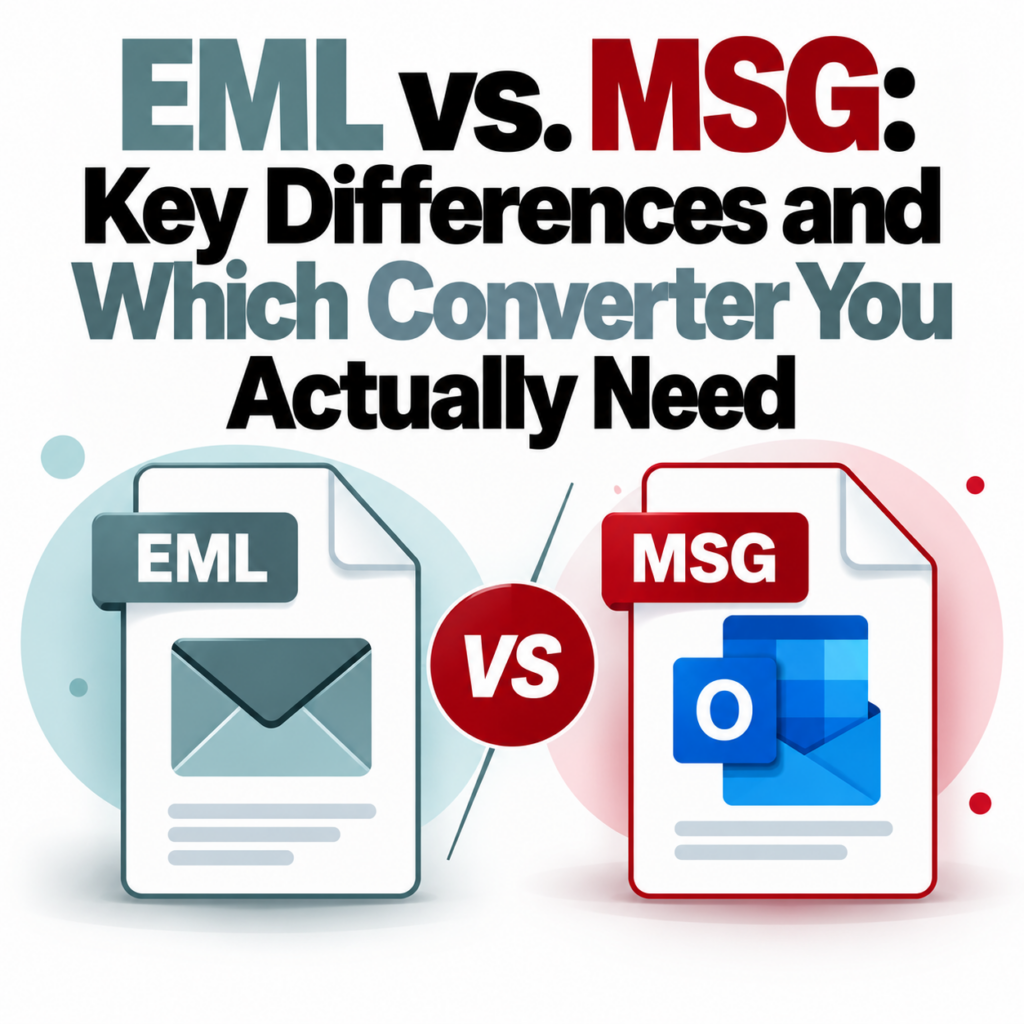
EML vs. MSG: Key Differences and Which Converter You Actually Need
You’ve got an email file you need to open or convert. The extension is either .msg or .eml, and you’re not sure if that matters. It does — they’re structurally different formats, they came from different email clients, and they require different handling when it comes to conversion.
Here’s what each format is, how they differ, and how to make sure you’re using the right tool.
What EML Is
EML is the standard format for saved email files. It’s defined by RFC 5322 (and earlier RFC 2822), which means it’s an open, documented format that any email client can implement. EML files are essentially plain text — they store the email as a structured text document with headers at the top and the body below, using MIME encoding to handle attachments and non-text content.
Email clients that produce EML files by default include Gmail (via Google Takeout), Apple Mail, Mozilla Thunderbird, Windows Mail, and Outlook (though Outlook can produce either format depending on how you save).
Because EML is plain text, you can technically open one in a text editor and read much of its content — headers are clearly visible at the top, and the body text will be readable if it’s not HTML-encoded. Attachments show up as encoded blocks, but the structure is human-readable in a way MSG files are not.
What MSG Is
MSG is Microsoft’s proprietary email format, used natively by Outlook. Unlike EML, MSG files are binary — they use the Compound Document File Format (also called Structured Storage), the same underlying format as old Office files like .doc and .xls. They can’t be opened in a text editor in any useful way.
MSG files can carry more metadata than EML files — Outlook-specific properties like custom flags, categories, follow-up reminders, and read status are preserved in MSG format. For most users, this extra metadata is irrelevant. For organizations with complex Outlook workflows, it can matter.
A detailed look at the MSG format structure is in the What Is an MSG File guide. The dedicated MSG vs. EML comparison page also covers format differences in depth.
Side-by-Side Comparison
| Feature | MSG | EML |
|---|---|---|
| Format type | Binary (proprietary) | Plain text (open standard) |
| Created by | Microsoft Outlook | Most email clients (Gmail, Apple Mail, Thunderbird, etc.) |
| Standard | Proprietary (Microsoft) | RFC 5322 (open) |
| Readable in text editor | No | Partially (headers visible) |
| Native support outside Outlook | Very limited | Wide support across clients |
| Metadata depth | Extensive (MAPI properties) | Standard email headers |
| Typical source | Outlook drag-to-folder saves, PST extractions, Exchange exports | Gmail export, Apple Mail, Thunderbird |
How to Tell Which One You Have
The simplest check: look at the file extension. If it ends in .msg, you have an MSG file. If it ends in .eml, you have an EML file. Both can be delivered as email attachments, downloaded from cloud storage, or received as part of a document production.
If you’re on Windows and file extensions are hidden (Windows hides them by default), right-click the file, choose Properties, and check the “Type of file” field. It will list the full format.
Does the Difference Matter for Conversion?
Yes — specifically because the parsing is different. A converter that handles EML well doesn’t necessarily handle MSG well, and vice versa. They’re structurally different enough that the parsing code is largely separate.
Generic file conversion tools (tools that convert “anything to anything”) often have weak implementations for both formats. They may handle the body text but drop headers, mishandle attachments, or fail on encoding edge cases. If you need the output to be accurate and complete, use a purpose-built tool.
For MSG files: the Outlook MSG to PDF converter handles the Outlook-specific binary format and preserves all header metadata including BCC.
For EML files: the EML to PDF converter handles the RFC-standard format correctly, including MIME-encoded attachments and HTML body content.
What Happens If You Use the Wrong Converter?
In most cases, nothing catastrophic — many tools make a reasonable attempt at both formats. But edge cases break things:
- An EML-focused converter trying to open an MSG file may fail entirely or produce a garbled output
- A tool that treats MSG as a text file will produce mostly binary junk with occasional readable strings
- Attachments are the first thing to break — they require correct parsing of the format’s attachment structure, which differs between MSG and EML
- Character encoding issues are common when the wrong parser is used, particularly for emails with non-Latin characters
Mixed Productions: Handling Both Formats at Once
Legal productions, IT migrations, and archive exports often include both MSG and EML files in the same batch. This is particularly common when a company uses Outlook for some employees and Gmail or another client for others, or has switched email platforms mid-history.
The practical approach for mixed productions:
- Sort files by extension before converting
- Run MSG files through an MSG-specific converter
- Run EML files through an EML-specific converter
- Combine the output PDFs as needed for review
Trying to run both through a single generic tool to save steps is where output quality degrades. The time saved isn’t worth the accuracy cost, especially for legal or compliance purposes.
Which Format Is Better?
For portability and longevity: EML. It’s an open standard, universally supported, and readable by any tool that implements RFC 5322 — which is essentially all of them. If you’re archiving email records for long-term storage and don’t know what tools will be used to read them in 10 years, EML is the safer format.
For Outlook-heavy organizations: MSG is what you get. If your team lives in Outlook and your email server is Exchange, MSG is the native output format. There’s no practical benefit to converting internally to EML — just make sure you have a way to convert to PDF when you need to share or archive records.
Bulk Conversion for Mixed Archives
If you have a large archive with both file types, converting manually is not viable. The bulk converter handles multiple MSG files in one upload. You’ll need a free account to access batch mode — see the pricing page for what’s included. The FAQ covers common questions about formats, limits, and file handling.
Have MSG files that need to become PDFs? The converter handles the binary format correctly — headers, body, and all.Convert MSG to PDF Now →