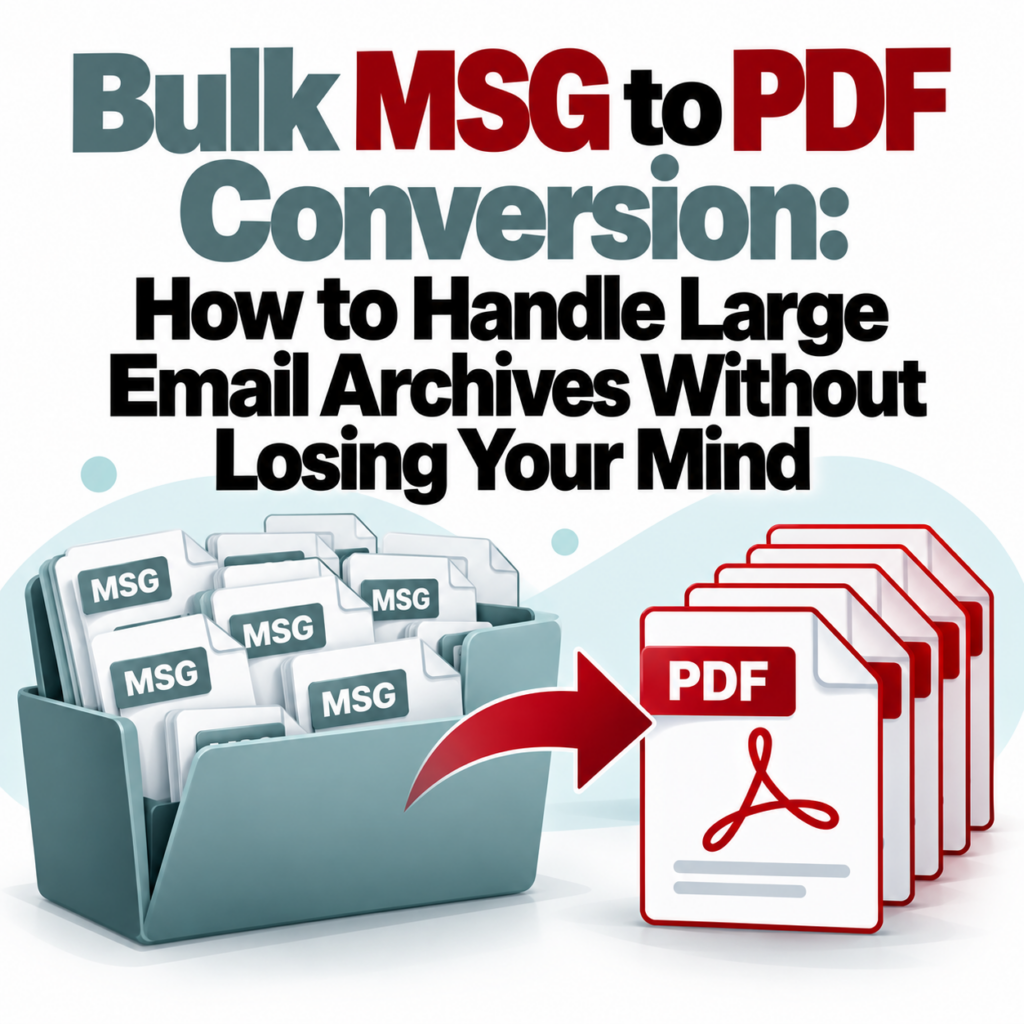
Bulk MSG to PDF Conversion: How to Handle Large Email Archives Without Losing Your Mind
One MSG file is easy. Ten MSG files are annoying. A hundred MSG files is a workflow problem. If you’re dealing with a significant volume — whether it’s a litigation export, an inbox migration, a compliance archive, or an old folder of saved client emails — you need batch conversion, not a browser tab you’re clicking through one file at a time.
This guide covers how to approach bulk MSG-to-PDF conversion, what to prepare before you start, and what to watch out for when the volume gets high.
When You Actually Need Batch Conversion
Batch conversion pays off quickly. The crossover point is roughly 5–10 files. Below that, one-at-a-time conversion is fine. Above it, the overhead of individual uploads (open file, upload, wait, download, repeat) adds up faster than you’d expect.
Common scenarios that call for batch conversion:
- Litigation holds: An IT department exports hundreds of MSG files as part of a discovery response. Someone has to convert them to readable PDFs for the review team.
- Email platform migration: Switching from Exchange/Outlook to Gmail or another provider. Old emails saved as MSG files need to be converted before the Outlook environment is decommissioned.
- Client records archiving: Law firms, financial advisors, and consultants routinely archive client communications. Saving emails as MSG files and converting them to a searchable PDF archive is a common pattern.
- PST extraction: When you crack open an old Outlook PST file (personal storage), individual emails typically extract as MSG files. You could have thousands of them.
- Regulatory compliance: Financial services, healthcare, and legal sectors face email retention requirements. Converting MSG files to PDF creates records in a universally readable, long-term format.
How Batch Conversion Works
The bulk MSG to PDF converter takes multiple file uploads in a single session. You select all the files at once, upload them together, and the converter processes each one individually — producing one PDF output per MSG file. You download the results as a ZIP or individual files depending on the batch size.
Batch mode requires a free account. Guest access (no account) limits you to 3 conversions. An account bumps this to 10 free conversions and unlocks multi-file upload. For larger volumes, see the pricing page for plan options.
Preparing Your Files Before You Upload
A little preparation before batch conversion saves a lot of cleanup after. Do these steps before you start:
1. Confirm all files are actually MSG files. If you’re working from a folder of mixed exports, you may have EML files, PDFs, or other types mixed in. Sort by extension (.msg) and pull only those. EML files need their own converter — the EML to PDF tool handles those.
2. Check file sizes. The converter handles files up to 10MB per file. Most individual MSG files are well under this — typical email-only files are 50–500KB. MSG files with large attachments (presentations, high-res images, video) can get large. Flag any files over 10MB before uploading — they’ll need to be handled separately.
3. Name your files logically before uploading. The output PDF takes its name from the input MSG filename. If your MSG files are named with cryptic IDs from a PST extraction (like “00000001.msg”, “00000002.msg”), your PDFs will have the same unhelpful names. Renaming them before upload — to something like “Smith_John_2024-03-15_Contract Discussion.msg” — gives you usable PDF filenames on the other side.
4. Organize by custodian or date range if you have multiple sources. If you’re converting emails from multiple employees or multiple time periods, keeping them in organized folders before upload makes the resulting PDFs easier to work with.
Tip: For litigation purposes, don’t rename files before documenting their original names. Keep a log of original filenames and their renamed equivalents, especially if you’re producing these documents to opposing counsel or a regulatory body. Chain-of-custody documentation matters.
What Each Output PDF Contains
Each converted PDF includes the complete email content: the full header block (From, To, CC, BCC, Date, Subject), the body with preserved formatting, inline images, and an attachment reference list. The conversion is one-to-one — one MSG file produces one PDF.
The PDFs are formatted consistently across a batch, which matters when you’re handing a set of documents to a review team or uploading them to a document management platform. Inconsistent formatting across files slows down review.
Handling Very Large Batches
If you’re dealing with hundreds or thousands of MSG files from a PST extraction, you’ll need a plan that goes beyond a browser-based converter:
- Break the files into logical batches by date range, custodian, or matter — don’t try to process everything in one massive upload
- Convert in stages, verifying a sample from each batch before processing the next
- For batches above a few hundred files, enterprise eDiscovery platforms (Relativity, Nuix, Logikcull) may be the right infrastructure — they’re designed for this scale and include review tooling, not just conversion
- Browser-based conversion works well up to moderate volumes; at scale, you may want to evaluate the workload before committing to a single approach
For most individual users and small teams, browser-based batch conversion handles what they need. The scenarios requiring enterprise infrastructure are typically large-firm eDiscovery productions or corporate IT migrations.
Quality Checking Your Output
Don’t skip QA on batch output. A spot-check of 5–10% of the converted files catches any systemic issues before they become a problem. What to check:
- Header completeness: Is the BCC field present when it should be?
- Body fidelity: Does the email body look like the original? Formatting, paragraph breaks, lists?
- Attachment references: Are attachment filenames listed in the PDF?
- Character encoding: Any garbled characters, especially in emails with accented characters, Asian-language content, or special symbols?
- Thread history: For emails with long reply chains, does the thread appear in the PDF?
Most QA issues — if they occur — are consistent across a batch. Finding one problematic pattern in your sample means checking whether it appears throughout.
After Conversion: What to Do With the PDFs
Batch conversion produces a set of PDFs. What you do with them depends on your use case:
For review: Upload to a document management system or review platform. PDFs from a consistent converter integrate cleanly into most platforms because they have predictable structure.
For archive: Store alongside the original MSG files if you’re keeping both. The PDFs are the human-readable layer; the originals are the authoritative source.
For production: Apply Bates numbering in a PDF editor before producing to opposing counsel. The legal eDiscovery guide covers production formatting in more detail.
For sharing: PDFs are universally readable — no Outlook required on the recipient’s end. This is the main practical advantage over sharing the original MSG files.
EML Files in Your Batch
If your archive contains both MSG and EML files — common with mixed-platform environments — you’ll need to handle them in separate passes. The EML to PDF converter handles EML files. The format structures are different enough that a single converter treating both the same will produce lower-quality output for at least one of them.
Need to understand the format differences before you start sorting? The MSG vs. EML breakdown explains what distinguishes the two.
Frequently Asked Questions About Batch Conversion
Do I need an account for batch conversion? Yes — batch (multi-file) upload requires a free account. Guest mode is limited to 3 individual conversions. Create a free account to unlock batch mode.
How many files can I upload at once? See the pricing page for batch limits by plan tier.
What happens to my files after conversion? Files are automatically deleted after 24 hours. Nothing is retained indefinitely.
Can I convert MSG files with attachments? Yes — the converter handles MSG files that include attachments. The attachments are referenced in the PDF output (filename and type listed in the header section).
More questions answered on the FAQ page.
Ready to work through a pile of MSG files? Create a free account and start converting in batches.Start Converting Now →