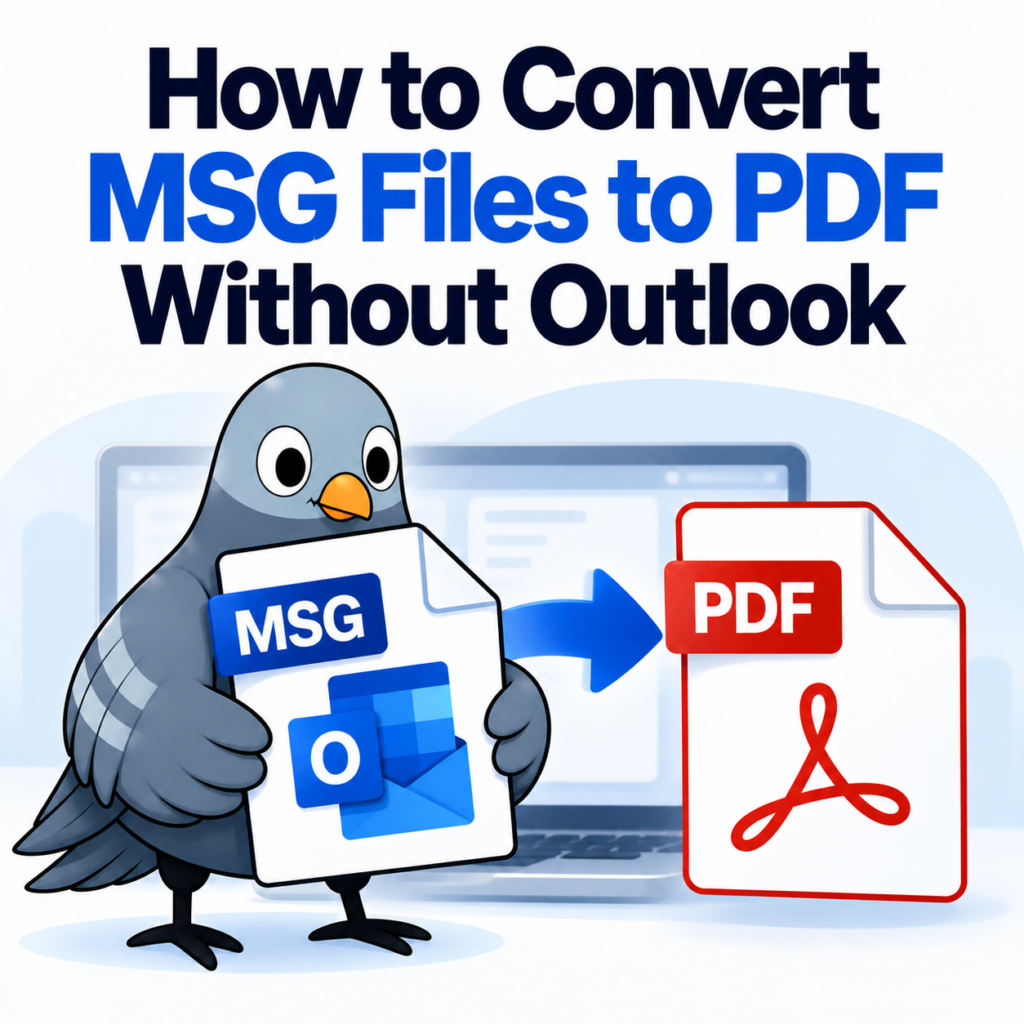
Learn How To Convert MSG Files to PDF Without Outlook
Most guides on this topic assume you have Outlook installed. You don’t. That’s probably why you’re here. The good news: you don’t need Outlook to convert an MSG file to PDF. You just need a browser and the right tool.
This guide covers the practical options — what actually works, what doesn’t, and why the simplest approach is usually the best one.
What Makes MSG Files Awkward
MSG is a proprietary Microsoft format. It stores not just the email body but also metadata like sender, recipient, timestamps, and any attachments — all packed into a single binary file. Unlike plain text or HTML files, you can’t just open an MSG file in a text editor and expect to read it.
That’s why most conversion paths historically required Outlook: it’s the application that knows how to parse the format. But browser-based tools now handle the parsing client-side, which means you get the same result without any desktop software. Want to understand the format before converting? The deep dive on what MSG files actually are explains the technical structure in plain language.
Option 1: Browser-Based Converter (Fastest)
This is the approach most people land on because it requires zero setup. You upload an MSG file, the tool converts it, and you download a PDF. No account required for a few files, no software to install, no Outlook dependency.
The conversion runs in your browser — your email content isn’t processed on a remote server and then stored indefinitely. Files are automatically deleted after 24 hours.
If you have a handful of files to convert, this is the right move. For larger batches, see option 2. The full step-by-step walkthrough is on the how-to conversion guide.
Option 2: Batch Conversion (Multiple Files at Once)
If you’re sitting on a folder full of MSG files — maybe from an old inbox export, a litigation hold, or an archiving project — converting them one at a time is miserable. Batch conversion lets you upload all of them at once and get all the PDFs back in one go.
The bulk MSG to PDF converter handles multi-file uploads. You’ll need an account to access batch mode, but the process is the same: upload, convert, download. No Outlook required at any step.
Option 3: Free General-Purpose Converters (With Caveats)
Tools like Zamzar will tell you they support MSG conversion. Technically true. In practice, these general-purpose converters often mangle formatting, strip attachments, or fail on files with non-standard encoding. They’re built for common formats like DOCX and JPEG — MSG support tends to be an afterthought.
If you’ve tried a generic converter and ended up with a garbled PDF, that’s why. The comparison between MSG to PDF Converter and Zamzar gets into the specifics of what each tool actually does differently.
Option 4: LibreOffice (Free, But Complicated)
LibreOffice, combined with a third-party MSG import plugin, can open and export MSG files as PDF. This works, but it’s not simple: you need to find the right plugin, install it correctly, and deal with formatting inconsistencies that come from trying to map Outlook’s proprietary structure to LibreOffice’s document model.
For a one-off conversion on a machine where you already have LibreOffice, it’s viable. For anything at scale or when accuracy matters — legal records, compliance archives, client deliverables — it’s too unreliable.
What Gets Preserved in the PDF
When you convert an MSG file with a purpose-built tool, the output PDF should include:
- The full email header — From, To, CC, BCC, Date, Subject
- The body text with original formatting
- Inline images embedded in the email body
- A list of attachments (the attachments themselves are typically listed, not embedded as separate PDF pages, though this varies by tool)
- Reply thread history if it’s included in the MSG file
Generic converters often drop the header or flatten the formatting. If you need a faithful representation — for legal review, records requests, or audit trails — that metadata matters. The guide on MSG to PDF for legal eDiscovery covers what “complete” actually means in a compliance context.
What About EML Files?
EML is a different format — it’s the standard used by most non-Microsoft email clients. If you’ve got EML files mixed in with MSG files, they convert differently. The EML to PDF converter handles those separately. There’s also a useful breakdown of the differences between MSG and EML and when it matters for conversion.
When You Actually Need Outlook
Honest answer: rarely. The main use case where Outlook is genuinely useful is if you need to modify the email before converting — editing the body, changing recipients, that sort of thing. For read-only conversion to PDF, a browser-based tool does the job without any of the overhead.
If you’re in a corporate environment where someone is insisting on Outlook-based conversion as a policy, that’s a process question, not a technical one. The conversion output is the same either way.
File Size and Limits to Know
The MSG to PDF Converter handles files up to 10MB per file. Most individual email files fall well within that. If you have large MSG files with substantial attachments, the attachment content will be noted in the PDF header section even if it can’t be fully embedded — you won’t lose the reference to what was attached.
Guest users (no account) get 3 free conversions. Creating a free account bumps that to 10, and unlocks batch mode. See the pricing page for what’s included at each tier.
Quick Checklist Before You Convert
- Confirm your file actually ends in .msg (not .eml or .mbox)
- Check the file size — keep it under 10MB for a clean conversion
- Decide whether you need one file or many — batch mode saves significant time on anything over 5 files
- Verify what you need in the output — just the body, or headers too? The tool includes both by default
Ready to convert? No Outlook required — just upload your MSG file and get a PDF back in seconds.Convert MSG to PDF Now →