Converting emails one at a time works fine for the occasional message. It falls apart fast when you’re exporting a shared mailbox, responding to a records request, or archiving before an employee departure — and that’s exactly where batch conversion matters.
What batch conversion actually does
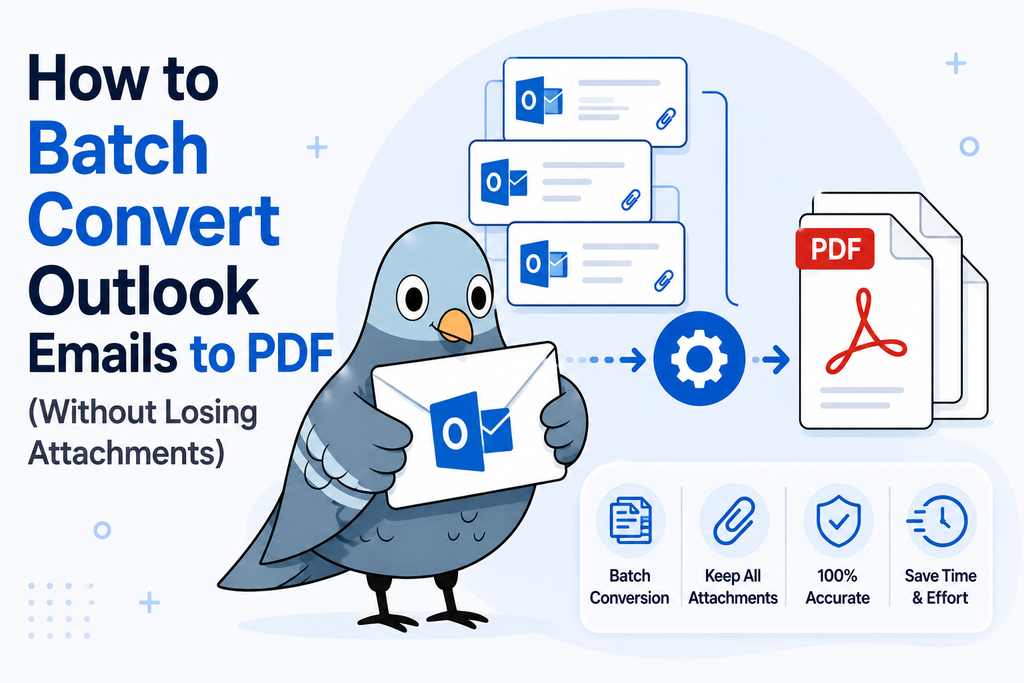
Batch conversion doesn’t merge everything into one giant file. Each email in the batch is converted the same way as a single conversion — its own PDF, with that email’s headers and attachments appended after the body. A 30-email batch produces 30 separate PDFs, not one long document to scroll through. That distinction matters if you need to reference, file, or share any individual email later — a single 200-page merged file is much harder to search, cite, or hand off than a folder of individually named documents.
How batch conversion compares to converting one at a time
The math adds up faster than it seems. Converting a single email — opening the file, uploading it, waiting for conversion, downloading the result — takes maybe 30 seconds of active attention. For five emails, that’s barely worth automating. For 50 or 200, doing that same cycle by hand turns into a genuinely tedious afternoon, and it’s easy to lose track of which files you’ve already processed. Batch conversion collapses that entire cycle into one upload and one wait, regardless of whether you’re converting 5 files or 500.
How to batch convert
- Create a free account. Batch upload isn’t available to guests — an account unlocks multi-file conversion and raises your limit.
- Gather your files in one place first. If you’re pulling emails from Outlook, save them all to a single folder on your device before starting — it’s much easier to select 40 files from one folder than to hunt through your inbox mid-upload.
- Select or drag in multiple .msg or .eml files, up to 10MB each.
- Convert. Each email processes independently, preserving its own headers, formatting, and attachments.
- Download your files. [Confirm: individual downloads or a single ZIP archive.]
See the full walkthrough on the bulk MSG to PDF converter page.
Making sure attachments actually come through
The most common thing people worry about with batch conversion is attachments quietly disappearing. Since each email converts independently, the same attachment-handling that applies to a single conversion applies here — attachments are appended to their own email’s PDF, not dropped or bundled elsewhere. See what happens to attachments for the full breakdown of which formats are supported.
What to check before starting a large batch
A few minutes of preparation saves rework later:
- Check file sizes first. Anything over 10MB will be rejected — better to know that before uploading 100 files than to discover it partway through.
- Confirm you’re grabbing the right file type. Mac Outlook, New Outlook, and Outlook on the web all save as .eml rather than .msg — both work here, but mixing them up when manually collecting files can lead to confusion about what you actually have.
- Name your source folder clearly if this is part of a larger export or archiving project — it makes it much easier to track what’s been converted versus what’s still pending, especially across multiple sessions.
When batch conversion is worth it
- Mailbox migrations. Moving off Outlook or decommissioning an account means exporting everything at once, not converting for weeks one email at a time while the deadline for shutting down the old system approaches.
- Legal or compliance requests. Producing a defined set of relevant emails as PDFs, on a deadline, where manually converting each one would eat into the time actually needed for review.
- Archiving policy. Converting a departing employee’s mailbox — or a shared team inbox being retired — into a portable, non-proprietary format that doesn’t depend on Outlook still being available years later.
Get started
Create a free account to start batch converting, or read more about bulk conversion for larger exports.