A full Outlook mailbox usually isn’t full of things you need — it’s full of large attachments and old threads nobody’s opened in years. Here’s how to bring the size down without losing anything that actually matters.
Start with the biggest offenders
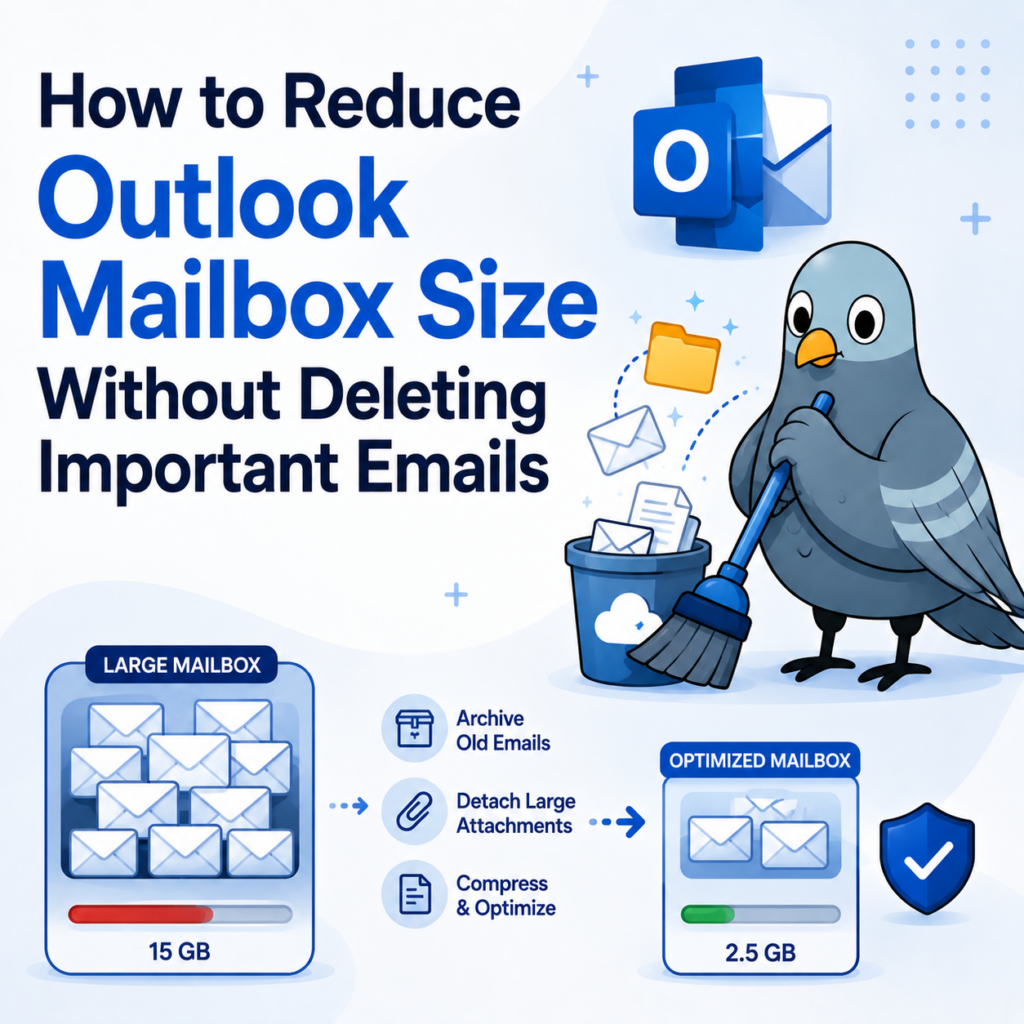
Outlook can sort by size — in the folder view, switch to “By Size” to see your largest messages first. A handful of emails with large attachments are often responsible for a disproportionate share of your total mailbox size. It’s common to find that a small number of messages — old presentation files, large PDFs, video attachments — account for far more space than years of ordinary text-based correspondence combined.
Look for patterns, not just individual emails
Beyond the single biggest files, look for recurring senders or subjects that keep adding up — a weekly report with a large attachment, an automated system that emails the same large file repeatedly, or a project thread where every reply re-attaches the same document. These patterns are worth addressing at the source (unsubscribing, changing how the report is delivered) rather than just cleaning up after them repeatedly.
Convert and archive attachment-heavy emails externally
For emails you need to keep but don’t need sitting in your live mailbox, converting them to PDF and saving them outside Outlook — on your device, in cloud storage, or in a document management system — removes the size burden from your mailbox while preserving the content, headers, and attachments intact. This is a common approach specifically because it keeps the record complete rather than just deleting the attachment and losing it. See how to convert MSG to PDF for the process, or batch convert if you’re clearing out many emails at once.
Use Outlook’s built-in archiving
Outlook’s AutoArchive feature (Windows) moves older items into a separate .pst file on your device, reducing your active mailbox size while keeping everything accessible. It’s typically found under File > Options > Advanced > AutoArchive Settings, where you can set how old an item needs to be before it’s moved and where the archive file is stored. If your organization uses Microsoft 365, an In-Place or Online Archive may also be available — check with your IT administrator, since availability and setup depend on your specific plan.
Empty Deleted Items and Junk regularly
Deleted emails often still count against your mailbox size until the Deleted Items folder itself is emptied — moving something to trash doesn’t actually free up space on its own. Junk Email is the same, and it’s easy to overlook since it’s rarely something you actively check.
Compact your PST file (if applicable)
If you’re using local .pst files, deleting items doesn’t automatically shrink the file size on disk — Outlook needs to compact it separately. This option is in Account Settings under Data Files, then Settings for the relevant PST file. Running this periodically after a cleanup pass ensures the space you freed up is actually reclaimed, not just marked as available internally.
The bigger-picture fix
If large attachments are a recurring problem, converting and archiving those specific emails as PDFs — rather than deleting them outright — is usually the best middle ground: your mailbox shrinks, and nothing important is actually lost.