You dragged an email out of Outlook, attached it, and sent it. Then the reply came back: “I can’t open this.” The attachment looked fine on your end and arrived as an unreadable blank icon on theirs.
This is one of the most common friction points in business email, and it catches people out precisely because nothing looked wrong when they sent it. Here is what is happening and the three reliable ways to share an Outlook email with someone who does not run Outlook.
Why the Recipient Can’t Open Your .MSG File
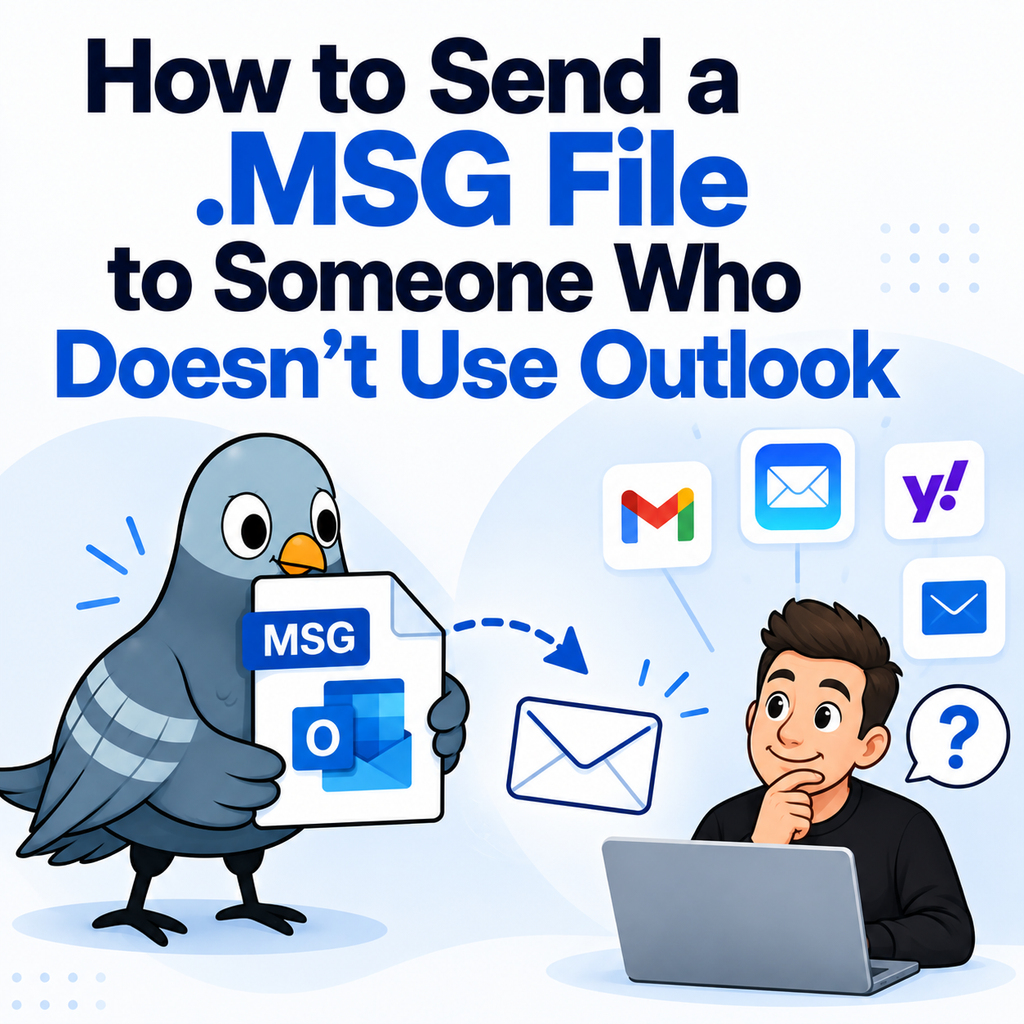
When you drag an email from Outlook to your desktop, Outlook writes a .msg file. That file is a Microsoft proprietary container holding the sender and recipient addresses, subject, timestamps, the formatted body, and any attachments, all packed into one binary structure.
Outlook can read that structure. Almost nothing else can. Apple Mail cannot, Gmail cannot preview it, Thunderbird cannot, and neither iOS nor Android has a built-in handler. Your recipient’s device sees a file type it has no instructions for, so it shows a generic icon and refuses to preview.
The mistake is understandable: on a Windows machine with Outlook installed, .msg files open instantly, so there is no signal that anything unusual is being sent. Our guide on what an MSG file is covers the format in more detail.
There is a second problem too. Some corporate mail gateways strip or quarantine .msg attachments because the format can carry embedded content. Even a recipient who does have Outlook may never receive the file.
Option 1: Convert the Email to PDF Before Sending
This is the option that works for every recipient regardless of platform, mail client, or device, and it is the one to reach for when you do not know what the other person uses.
Upload the .msg file to our MSG to PDF converter, download the PDF, and attach that instead. Files up to 10MB are supported, with three free conversions as a guest or ten with a free account. Uploads are encrypted in transit and deleted after 24 hours, and the converter never requests access to your mailbox.
PDF is the right choice for a few reasons beyond compatibility:
- The email still looks like an email, with the from, to, subject, and date visible at the top.
- The recipient cannot accidentally edit it, unlike a pasted copy in a document.
- It opens on a phone without a single install.
- Mail gateways treat PDFs as routine rather than suspicious.
- It survives filing. Six months later the PDF still opens, which is not guaranteed for a proprietary format.
Option 2: Forward the Email Normally
The lowest-effort option: instead of attaching the saved file, open the original email in Outlook and forward it. The recipient gets a standard message they can read in any client.
Forwarding has real drawbacks when the email matters. Outlook adds your forwarding header and may reflow the original formatting. Quoted text can lose indentation and inline images sometimes drop. And the recipient receives your forward rather than a faithful copy of the original message, which is exactly the wrong outcome when the point is to show what was sent and when.
Forward when you are passing along information. Convert when the email itself is the point.
Option 3: Print to PDF From Outlook
If the email is still in your mailbox, Outlook can produce a PDF directly. On Windows, use File then Print, then choose Microsoft Print to PDF. On Mac, press Command and P, then use the PDF dropdown and select Save as PDF.
This is fast and free, with one significant catch: printing captures only what is on screen. Attachments are not included, and long threads sometimes break badly across page boundaries. If the original email had a contract or an invoice attached, that attachment is simply missing from the PDF, and the recipient may not realise anything is absent.
Printing also does not help at all when someone sent you a .msg file, since you cannot print a file you cannot open. In that case, conversion is the only route.
Sending Several Emails at Once
Sharing one email is a minor annoyance. Sharing forty is a project. This comes up constantly when responding to an audit, handing a project history to a new vendor, or producing correspondence for a client.
Our bulk MSG to PDF converter processes multiple files in one upload, which requires a free account. The output is a set of PDFs your recipient can open, search, and file without asking you a single follow-up question.
For formal productions where the emails become part of a record, see our notes on MSG conversion for legal and eDiscovery work, which covers what needs to stay intact.
What Not to Do
Do not tell them to rename the file. Renaming .msg to .eml or .txt does not convert anything. It changes the label while the contents stay in Microsoft’s binary format, so the recipient gets a partly readable mess and a second round of confusion.
Do not screenshot the email. A screenshot loses the headers, cannot be searched or copied from, cuts off anything below the fold, and looks careless in a professional context.
Do not paste the email into a Word document. The formatting rarely survives, the header information usually gets dropped, and the result is editable, which undermines it as a record.
Frequently Asked Questions
Why can my colleague open the .msg file but my client can’t?
Your colleague almost certainly has Outlook installed. The format is readable only in Outlook, so anyone on Apple Mail, Gmail, or a mobile device will not be able to open it.
Does converting to PDF change the email’s content?
No. Conversion reads the stored message and renders it, preserving the headers, body, and formatting as they were saved.
Can I send a .msg file through Gmail?
Gmail will carry the attachment, but it cannot preview it and the recipient will need Outlook to open it. Converting first avoids the problem entirely.
What if the email has attachments I need to share too?
Check how attachments are handled in the output before you send. If the attachments are essential to the record, confirm they are present rather than assuming.
Send Something Anyone Can Open
The .msg format was built for storing emails inside Outlook, not for sharing them outside it. Every time one gets attached to an outbound message, there is a good chance the person on the other end sees a blank icon and has to write back.
Converting takes under a minute and removes the entire round trip. Convert your MSG file to PDF and send something your recipient can actually read.